Contacts App Not Working on macOS Tahoe? Ghost Numbers & Crashes Fix

Fix the Contacts app on macOS Tahoe: stop ghost phone numbers, crashes, contacts that won't save, and iCloud sync bugs with this complete fix guide.
You open the Contacts app on your Mac to fix one phone number, and instead you find a stranger's WhatsApp handle grafted onto your dentist's card, your own "My Card" duplicated twice, and a friend's name gone blank the moment you tried to add their company. Then, mid-edit, the whole app quietly quits and your changes vanish. If this sounds familiar, you are not imagining it: the Contacts app not working on macOS Tahoe is one of the most heavily discussed Apple bugs of 2026, with a 12-page mega-thread on MacRumors and a stack of Apple Support Community reports all describing the same cluster of symptoms. This guide is the definitive, honest troubleshooting walkthrough — what is actually going wrong, what you can fix today, and what you'll unfortunately have to work around until Apple ships a point update.
Before we go a single step further, one rule matters more than everything else in this article: back up your contacts before you touch anything destructive. Several of the fixes below involve toggling iCloud Contacts or signing out of iCloud, and both can remove data from your Mac if you answer a prompt the wrong way. We'll cover exactly how to make a safe, complete backup in the very first section. Do that first. Everything else is reversible once you have an archive.
Key Takeaways
- Ghost phone numbers usually come from a third-party app with Contacts access (WhatsApp, Telegram, Signal, and similar) writing or linking data to your cards — or from Contacts' automatic card unification. The durable fix is to revoke the app's Contacts permission in System Settings, then unlink and clean up.
- Always export a Contacts Archive (.abbu) and a vCard before any destructive step. File > Export protects you from the data-loss prompts that appear when you toggle iCloud Contacts off or sign out of iCloud.
- Most crashes follow a fix ladder: quit and relaunch Contacts, restart the Mac, toggle iCloud Contacts off/on, test in a fresh user account, boot into Safe Mode, and only sign out of iCloud as a last resort.
- Some of these are UI bugs, not data problems — the blank-name-when-Company-is-toggled issue and the duplicate "My Card" are display/state glitches you can work around today, with no official fix as of mid-2026 (current stable is macOS Tahoe 26.5.2, released June 29, 2026).
- When a fix doesn't hold, file Feedback and wait for a point update. Data-integrity bugs in a synced system often need a server-side or client fix from Apple, not just local troubleshooting.
First, Understand Where Your Contacts Actually Live
Almost every confusing Contacts bug makes sense once you understand that the app is a front end for one or more separate accounts, not a single database. When you look at your contact list, you may be looking at cards from several sources stacked on top of each other.
iCloud vs. "On My Mac" vs. third-party accounts
Open Contacts and choose View > Show Groups (or press the sidebar toggle). In the sidebar you'll typically see one or more of these account containers:
- iCloud — cards stored in Apple's cloud and synced to every device signed into the same Apple Account. This is where most people's contacts live, and it's where sync bugs bite hardest.
- On My Mac — a local-only account stored on this Mac. Cards here never sync anywhere. Many people don't realize they have contacts split between iCloud and On My Mac, which produces "it's on my phone but not my Mac" confusion.
- Google / Exchange / other accounts — if you added a Google or Microsoft Exchange account in System Settings > Internet Accounts and enabled Contacts for it, those cards appear here and sync with that third party, not iCloud.
Knowing which container a card lives in matters because the fix is different. A ghost number on an iCloud card can be cleaned at iCloud.com; a ghost number on an On My Mac card cannot. Right-click a card and you can often see which account it belongs to, or click into an account group in the sidebar to see only that account's cards.
How iCloud Contacts sync works (the short version)
iCloud Contacts is a bidirectional sync system. When you edit a card on your Mac, the change is written locally and then pushed to Apple's servers, which relay it to your iPhone, iPad, and any other signed-in device. Critically, this means a bad edit or a bad card propagates everywhere. If a third-party app injects a ghost number into an iCloud card, that number syncs to all your devices within seconds. Deleting it on the Mac should delete it everywhere — but if the source app or a linked card keeps re-adding it, you'll see it "come back," which is exactly what the community threads describe.
If you want a deeper mental model of how Apple's cross-device sync behaves (and misbehaves) on Tahoe, our Continuity and sync troubleshooting guide walks through the same underlying plumbing that Contacts, Handoff, and Universal Clipboard all share.
Why "which account" is the first question to ask
Before you conclude that Contacts is "broken," confirm you're editing the card you think you are, in the account you think it lives in. A huge share of the confusion in the community threads dissolves once people realize they've been editing an On My Mac copy while their iPhone shows the iCloud copy — or vice versa. Two quick habits will save you hours:
- Set a default account for new contacts. In Contacts, open Contacts > Settings > General and set the Default Account to iCloud. This ensures that every new card you create syncs, instead of silently landing in On My Mac where it will never appear on your other devices.
- Check the account before editing. Click into the specific account group in the sidebar so the card list only shows one account's cards. Now you know exactly what you're touching. If a contact appears in both On My Mac and iCloud, you have a genuine duplicate across accounts — not a sync failure — and the fix is to delete the local copy and keep the iCloud one.
Getting this straight up front prevents you from chasing a "sync bug" that is really just two copies of the same person living in two different containers.
Back Up Your Contacts First (Do Not Skip This)
This is the single most important section in the article. Every destructive fix later on assumes you have already done this.
Export a Contacts Archive (.abbu)
The Contacts Archive is a complete, restorable snapshot of your entire Contacts database, including groups, linked-card relationships, and all accounts.
- Open Contacts.
- From the menu bar choose File > Export > Contacts Archive…
- Choose a safe location — ideally not just your Desktop, but a folder you also back up (Time Machine or an external drive).
- Save. You now have a
Contacts.abbufile (technically a package/bundle).
To restore later, you'd double-click the .abbu or use File > Import… and Contacts will offer to replace your current data with the archive. Because restoring an archive replaces your library, keep the archive somewhere you won't accidentally re-import it.
Also export a vCard (.vcf)
A vCard is more portable and lets you cherry-pick. Select all contacts (Edit > Select All, or ⌘A in the card list), then File > Export > Export vCard… This produces a single .vcf file you can open on almost any device or import selectively. Keep both formats: the .abbu for a true full restore, the .vcf for portability and partial recovery.
If you don't already have a broader safety net, this is a good moment to set one up. Our Mac backup strategy guide explains how Time Machine, iCloud, and a bootable clone each protect different things — and why "it's in iCloud" is not, by itself, a backup.
The Ghost Numbers Problem: Where They Come From
The headline symptom in the community threads is "ghost" phone numbers that appear on contacts seemingly from nowhere, resist deletion, and reappear after you remove them. Users consistently report that these numbers match handles or accounts from third-party messaging apps — WhatsApp, Telegram, Signal, and the like. Let's be precise and conservative here: this is user-reported behavior, and there are two well-understood mechanisms that explain it. I'm not going to invent an internal Apple root cause I can't support, but I can show you exactly where to look and what to do.
Mechanism 1: An app with Contacts access is writing to your cards
When you grant a messaging app access to Contacts, on many platforms that permission is read-only in spirit but read/write in practice — the app can add fields, add cards, or link its own account identifiers to your existing cards so its in-app contact list stays current. If WhatsApp or Telegram associates a user's phone number with a card it matched to, that number can show up on the card in Contacts. Because the app re-runs this matching, deleting the number by hand and leaving the app's permission on means the app can simply write it back on its next sync. That is almost certainly why users see numbers "come back after removal."
Mechanism 2: Linked/unified cards
Contacts automatically unifies cards it believes represent the same person, merging what it shows into a single unified view while keeping the source cards separate underneath. If an app created its own card for a person (say, a "WhatsApp" card with just a phone number) and Contacts linked it to your existing card, the unified view shows the ghost number — but the number actually lives on the linked source card, not the one you're editing. Delete it from the visible card and it reappears because the linked source still carries it. We'll fix this by unlinking, below.
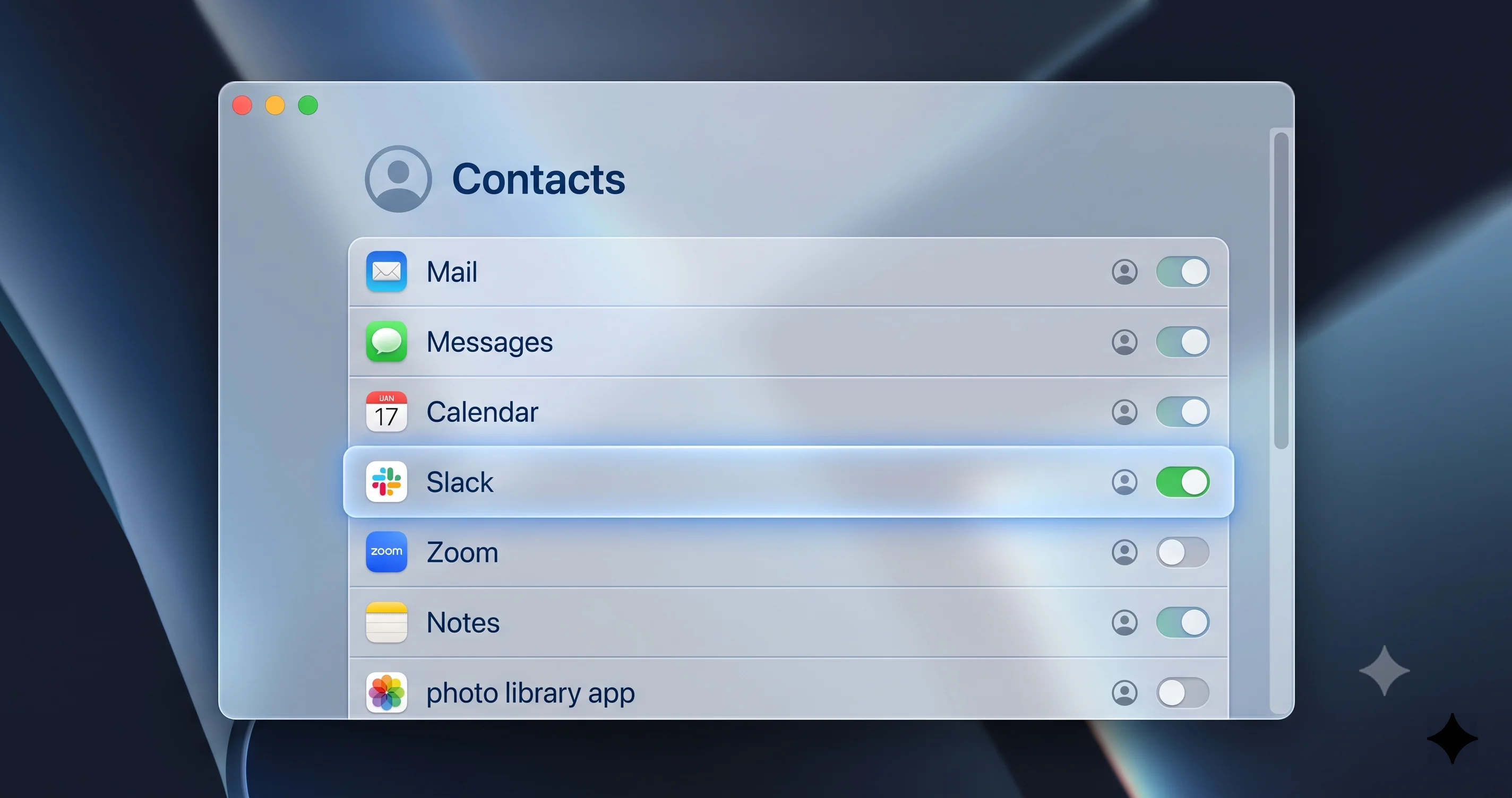
Audit and revoke Contacts access for third-party apps
This is the durable first move for ghost numbers:
- Open System Settings.
- Go to Privacy & Security > Contacts.
- You'll see a list of every app that has requested Contacts access, each with a toggle. Review it carefully — messaging apps, social apps, CRMs, and email clients are the usual suspects.
- Turn off the toggle for any app you suspect is injecting numbers (WhatsApp, Telegram, Signal, etc.). You can always re-enable it later.
Revoking access stops the app from writing new data to your cards. It does not retroactively remove numbers it already added — you'll still need to clean those up (next section) — but it stops the "comes back after I delete it" loop, which is the frustrating part.
Unlink a card to expose and remove the ghost number
If the number is coming from a linked card:
- Select the affected contact.
- Choose Card > Look for Duplicates… to let Contacts surface merge candidates, or open the card and look for a note that it is linked (linked cards show the source accounts near the bottom of the card in edit mode).
- To break a link, open the card, click Edit, scroll to the Linked Cards section, and click the minus (–) button next to the linked card you want to detach.
- Once unlinked, the ghost number will live on one specific card. Delete that card outright if it's an app-created stub, or edit the number off it and save.
After unlinking and cleaning up, revoke the offending app's Contacts permission (previous step) so the link and number don't get recreated on the next sync.
Clean stubborn numbers at iCloud.com as an alternate path
Sometimes the Mac's Contacts app is itself part of the problem — the local edit doesn't "stick" or the app crashes mid-delete. In that case, edit from the web:
- Go to iCloud.com/contacts in a browser and sign in with your Apple Account.
- Find the contact, click Edit, and remove the ghost number there.
- Save. Because iCloud is the source of truth for iCloud-account cards, the deletion syncs back down to your Mac and other devices.
This web path bypasses whatever local UI bug is interfering on Tahoe, and it's often the fastest way to make a stubborn deletion actually take. It only works for cards in your iCloud account, not On My Mac cards.
A note on why the number "won't die"
It's worth being precise about the sequence, because the order of operations is what determines whether a ghost number stays gone. If you delete the number before revoking the source app's Contacts access, you're deleting the copy while the app is still authorized to write it back — so it returns on the next matching cycle and you conclude the delete "didn't work." The correct order is: revoke the app's Contacts permission first, then unlink any linked source card, then delete the number, verifying at iCloud.com if the Mac app resists. Removing the authority to recreate the data is the step people skip, and it's the step that actually breaks the loop. If a number still reappears after all of that, the source is likely another signed-in device running the same app with permission still granted — check that your iPhone's Settings > Privacy & Security > Contacts doesn't re-grant what you just revoked on the Mac.
Contacts That Won't Save: The App Quits Mid-Edit
Another widely reported symptom: you start creating a new contact, and partway through entering details the Contacts app closes or quits, discarding the unsaved card. This is maddening because it destroys work, and there's no single confirmed cause. Here's the practical ladder that resolves it for most people.
Force a clean save before the crash window
A useful habit while the bug persists: enter the name first, then immediately click Done to save the card, and only then reopen it in Edit mode to add phone, email, and photo. A saved card that you re-edit is far less likely to be lost than a brand-new card that's still in its initial creation state when the app quits. It's a workaround, not a fix, but it protects your data today.
Quit and relaunch Contacts
Fully quit Contacts (⌘Q, or right-click the Dock icon > Quit) rather than just closing the window. If it's unresponsive, use Force Quit (⌥⌘Esc), select Contacts, and relaunch. A stale in-memory state is the most common reason edits fail to commit, and a clean relaunch clears it.
Restart the Mac
A full restart (Apple menu > Restart) clears the contactsd background sync daemon and any wedged state it's holding. This sounds trivial, but for sync-related save failures it resolves a surprising share of cases because contactsd is the process that actually reconciles your local edits with iCloud.
Toggle iCloud Contacts off and on (read the data-loss note first)
If saves keep failing on iCloud cards, re-establishing the iCloud Contacts sync often clears it:
- Open System Settings and click your name at the top to open Apple Account.
- Choose iCloud, then find Contacts in the list of apps using iCloud.
- Turn Contacts off. macOS will show a prompt asking what to do with the iCloud contacts currently on this Mac. You'll typically be offered "Keep on My Mac" or Delete (wording varies by version).
- Choose "Keep on My Mac" if you want a local copy retained. Choosing Delete removes the local iCloud contacts from this Mac (they remain in iCloud and on other devices, but do not gamble on that — this is exactly why you exported an archive first).
- Wait 30–60 seconds. Then turn Contacts back on and choose to Merge when prompted.
This forces a fresh sync handshake and frequently unsticks the save pipeline. This is a destructive-capable step — the data-loss caution is real, which is why the backup section came first.
Crashes When Changing a Contact Photo
Users report the app freezing or crashing specifically when they change a contact's photo. Photo handling touches image decoding, the Photos/Memoji picker, and iCloud media, so it has more failure surface than a plain text edit.
Work around it
- Add the photo from a smaller source. Instead of dragging a huge original image, resize it first (open in Preview, Tools > Adjust Size, drop it to around 512×512) and then set that as the contact photo. Oversized images are a plausible trigger for the freeze.
- Avoid the Memoji/Emoji picker if that's where it hangs; set a plain photo instead.
- Set the photo at iCloud.com/contacts for iCloud cards. The web editor uses a different image pipeline and often succeeds where the Mac app freezes, then syncs the photo back.
- If Contacts freezes, Force Quit (⌥⌘Esc) and relaunch, then re-attempt with a smaller image.
As of mid-2026 there is no official fix for the photo-change crash; treat these as workarounds until a point update addresses it.
Clear the photo cache if it's a specific card
If one particular contact reliably crashes the app when you touch its photo — but others don't — the stored image data for that card may be malformed. Rather than fight it, remove the existing photo entirely (open the card, click Edit, click the current photo, and choose to delete it), save, quit and relaunch Contacts, and only then add a fresh, small image. Wiping the bad image before adding a new one avoids the decode step that's likely triggering the freeze. For a card that crashes so hard you can't even open it in Edit mode, do the whole operation at iCloud.com/contacts instead, where the problematic local image never has to be decoded on your Mac.
The Company Field Hides the Contact's Name
This one is a display bug, not a data-loss bug — which is good news, because your data is intact even when the name looks gone. Users report that toggling the Company checkbox on a card causes the person's name to become blank or hidden in the list.
Why it happens and how to fix it
On a contact card in Edit mode there's a "Company" checkbox. When you check it, Contacts treats the card as an organization rather than a person, and it prioritizes displaying the company name as the card's title instead of the first/last name. If the Company field is empty (or the app mishandles the toggle on Tahoe), the title can render blank — the name is still stored, it's just not being shown as the display name.
To fix:
- Open the affected card and click Edit.
- Uncheck the "Company" box if this is a person, not an organization. The first/last name should return as the display title.
- If you legitimately want it treated as a company, make sure the Company field actually contains text so there's something to display.
- Save (Done). If the list still shows a blank entry, quit and relaunch Contacts to force the list view to redraw.
Because the underlying name data is never lost here, you can safely experiment. There is no official fix as of mid-2026 for the toggle mishandling the redraw, but the uncheck-and-relaunch workaround reliably restores the visible name.
Duplicate "My Card" Entries
"My Card" is the special contact that represents you — it's what Contacts, autofill, and Siri use when they need to know who the owner of this Mac is. Tahoe users report ending up with two (or more) My Card entries, which confuses autofill and Continuity features.
Pick the real one and delete the extra
- In Contacts, look for the small silhouette/head badge on a card that marks it as My Card, or choose Card > Go to My Card to jump to the currently designated one.
- Decide which card is the complete, correct you — the one with all your real details.
- Select that card and choose Card > Make This My Card. This reassigns the "me" designation.
- Now delete the extra/duplicate card: select it and press Delete (or Edit > Delete Card). Confirm.
If the duplicate keeps its badge or reappears, it may be a linked card — unlink it first (see the ghost-numbers unlinking steps) and then delete the stub. After you've settled on a single correct My Card, restart Contacts so autofill and Siri pick up the corrected owner card.
The Full Fix Ladder: Escalating When Nothing Else Works
If you've tried the targeted fixes and Contacts is still broken, work through this ladder in order. Each step isolates the problem a little more, and you should stop as soon as one resolves your issue.
1. Quit and relaunch, then restart
Covered above, but it's the correct first rung: fully quit Contacts, then restart the Mac to clear contactsd. Roughly a third of transient Contacts problems die here.
2. Toggle iCloud Contacts off and on
Also covered above. Re-run the sync handshake. Remember the data-loss caution and that you already have an archive.
3. Create a new test user account to isolate the fault
This is the diagnostic that tells you whether the problem is system-level or tied to your account/data:
- System Settings > Users & Groups > Add Account… and create a new standard user (you don't need to sign it into iCloud).
- Log into that account and open Contacts.
- If Contacts behaves perfectly in the clean account, the bug is tied to your user account or your iCloud data — pointing you toward the account-reset and rebuild steps below. If it misbehaves even in a fresh account, the problem is system-wide (macOS itself), which points toward Safe Mode, reinstalling macOS, or waiting for an Apple update.
This single test saves enormous time because it stops you from wiping and rebuilding your data when the fault was system-level all along.
4. Boot into Safe Mode
Safe Mode loads a minimal macOS, disables third-party startup items, and clears certain caches:
- Apple silicon: Shut down, then hold the power button until "Loading startup options" appears, select your disk, hold Shift, and click Continue in Safe Mode.
- Test Contacts in Safe Mode. If it works here, a login item, extension, or cache is the culprit; a normal restart often clears the cache issue, or you can hunt down the offending third-party app.
5. Sign out and back into iCloud (last resort)
Only after the steps above, and only with your archive in hand:
- System Settings > [your name] > Sign Out (near the bottom). macOS will ask whether to keep a copy of iCloud data on this Mac — keep a copy so you don't lose local data during the process.
- Restart, then sign back in and re-enable Contacts under iCloud.
Signing out and back in rebuilds the entire iCloud relationship on this device. It's powerful but heavy-handed — it re-downloads everything and can take a while — which is why it sits at the bottom of the ladder.
6. Rebuild from your vCard backup
If your local database itself is corrupted, the cleanest cure is a rebuild. With your .abbu and .vcf backups safe: in a test account or after resetting Contacts, File > Import… your vCard to reconstruct a clean library. Because you exported before touching anything, this is a safe, reversible operation.
For a wider view of how these iCloud-dependent apps interlock and fail together on Tahoe, our iCloud Drive complete guide is a useful companion — the same account plumbing underlies Contacts, Drive, and the rest of iCloud.
Troubleshooting Common Issues
Problem: A ghost phone number keeps reappearing on a contact no matter how many times you delete it in the Contacts app.
Solution: The number is being re-injected by a third-party app or carried on a linked card. First, go to System Settings > Privacy & Security > Contacts and turn off access for the messaging app you suspect (WhatsApp, Telegram, Signal). Then open the card, click Edit, and remove any entry in the Linked Cards section that's feeding the number, deleting the app-created stub card outright. Finally, delete the number itself — or do it at iCloud.com/contacts if the Mac app won't cooperate. With the app's write access revoked, the number can no longer come back.
Problem: Contacts quits every time you try to create a new contact, and the new card is never saved.
Solution: Save early. Enter just the name and click Done immediately to commit the card, then reopen it in Edit mode to add the rest — a saved card survives a crash far better than an in-progress one. If it persists, fully quit Contacts, restart the Mac to reset the contactsd daemon, and if saves still fail on iCloud cards, toggle iCloud Contacts off and back on (choosing "Keep on My Mac," and only after exporting a backup).
Problem: A contact's name disappears from the list after you turned on the Company checkbox.
Solution: This is a display bug — your data is safe. Open the card, click Edit, and uncheck "Company" if this is a person; the name will return as the display title. If it should be a company, make sure the Company field actually has text so there's something to show. Relaunch Contacts if the list doesn't redraw immediately.
Problem: Your contacts on the Mac don't match what's on your iPhone, and edits on one device don't reach the other.
Solution: Confirm both devices are signed into the same Apple Account and have iCloud Contacts enabled. Check that the contact actually lives in the iCloud account and not On My Mac (local cards never sync). Force a resync by toggling iCloud Contacts off/on on the Mac, or verify the card at iCloud.com/contacts to see the true cloud state. Related sync issues across Messages, Calendar, and Mail often share a root cause — see the linked guides below.
Frequently Asked Questions
Where do ghost numbers on my contacts actually come from?
They typically come from a third-party app with Contacts access (like WhatsApp or Telegram) writing matched numbers onto your cards, or from Contacts linking an app-created card to yours so the number shows in the unified view. Revoke the app's Contacts permission in System Settings and unlink the source card to stop them.
Will toggling iCloud Contacts off delete my contacts?
It can, depending on how you answer the prompt. When you turn Contacts off under iCloud, macOS asks whether to keep a local copy or delete it. Choose "Keep on My Mac." Even so, always export a Contacts Archive and vCard first — that backup makes every step in this guide fully reversible.
How do I fix a contact whose name went blank after enabling Company?
Your name data isn't lost, just hidden. Open the card, click Edit, and uncheck the "Company" checkbox if the contact is a person — the name reappears as the title. If it's genuinely a company, put text in the Company field so there's a name to display, then quit and relaunch Contacts to refresh the list view.
Has Apple officially fixed these Contacts bugs in macOS Tahoe?
As of mid-2026, with macOS Tahoe 26.5.2 (released June 29, 2026) as the current stable release, there is no official fix confirmed for the photo-change crash, the Company-field name-hiding, or the ghost-number behavior. Some issues have durable workarounds; others may need a future point update. File Feedback to help Apple prioritize.
Why does my new contact disappear before I can save it?
The app is quitting mid-creation before the card commits to the database. Save the name first and click Done, then reopen the card to add details — a saved card survives a crash where an in-progress one doesn't. Restarting the Mac to reset the contactsd sync daemon also resolves many of these save failures.
Should I sign out of iCloud to fix Contacts?
Only as a last resort, after quitting, restarting, toggling iCloud Contacts, and testing a fresh user account. Signing out rebuilds the entire iCloud relationship and re-downloads everything, so it's heavy-handed. When you do it, choose to keep a local copy, and make sure you've already exported a Contacts Archive backup.
Conclusion
The macOS Tahoe Contacts bugs are frustrating precisely because they mix two very different kinds of problems: genuine data-integrity and sync issues, like ghost numbers propagating through iCloud, and cosmetic UI glitches, like a name hiding behind a Company toggle. The good news is that the data-loss risk is almost entirely in your control. If you export a Contacts Archive and a vCard before you touch anything, every fix in this guide — revoking app permissions, unlinking cards, toggling iCloud Contacts, signing out, or rebuilding from scratch — becomes a safe, reversible experiment rather than a gamble.
Start with the non-destructive moves: audit Privacy & Security > Contacts, unlink the cards feeding your ghost numbers, and clean stubborn entries at iCloud.com. Escalate the fix ladder only as far as you need to, and use a fresh test user account to tell system-level bugs apart from account-level ones before you rebuild anything. Where only a workaround exists — the photo crash, the Company-field display bug — apply it and move on, because as of mid-2026 those await an Apple update.
Your next step: export your Contacts Archive right now (File > Export > Contacts Archive…), then work through the ghost-number audit. If a bug survives everything here, file a Feedback report with Apple and keep an eye on the next point release. And while you're hardening your Apple ecosystem, it's worth checking the related sync guides — iMessage syncing between Mac and iPhone, Calendar and Reminders troubleshooting, Mail not working, and the macOS Tahoe 26.5 update roundup — because on Tahoe, the apps that lean on iCloud tend to break, and get fixed, together.