How to Reset PRAM and SMC on a Mac: Steps for Every Model
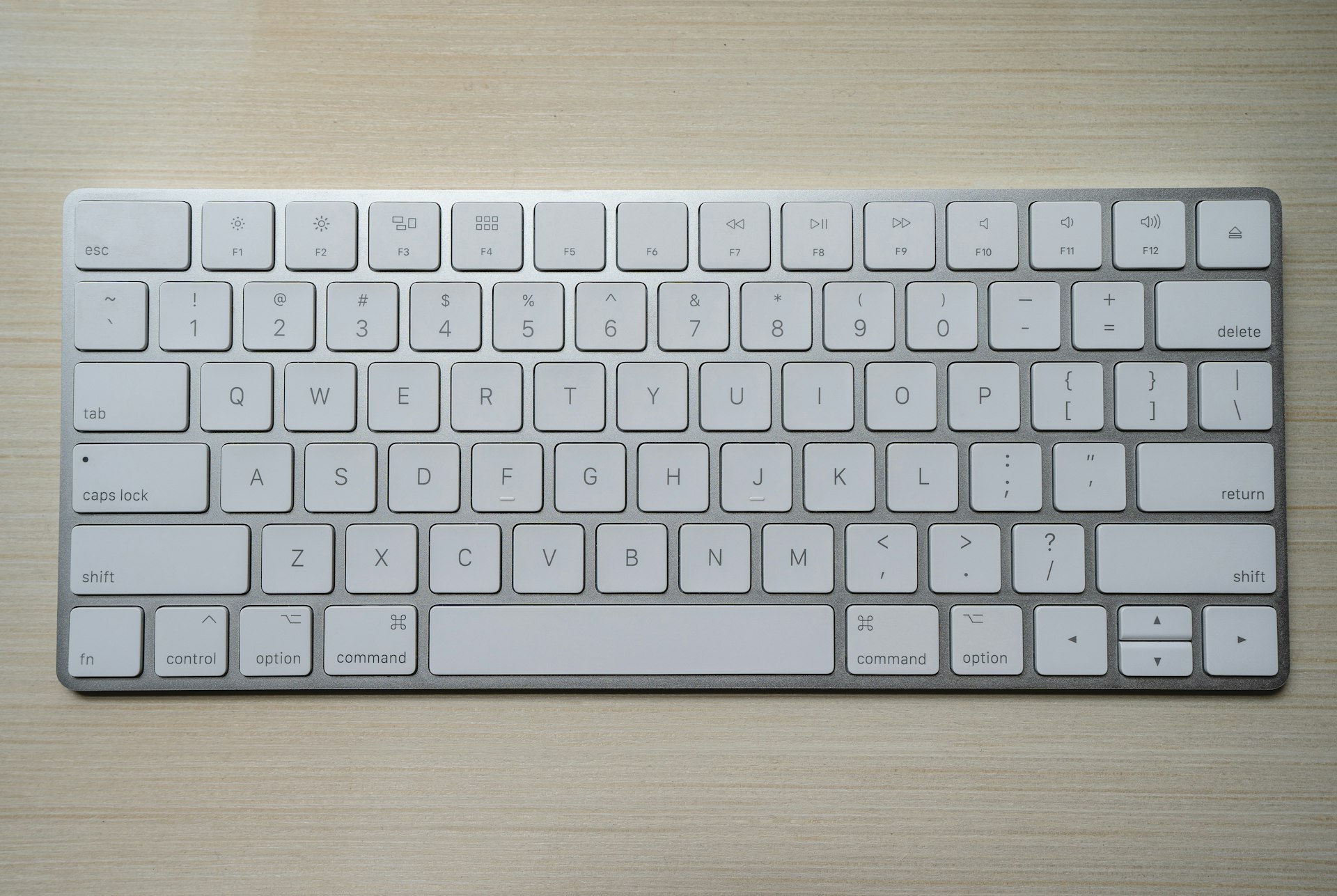
Intel Mac PRAM reset: hold Option-Command-P-R for about 20 seconds. SMC depends on your Mac; Apple silicon needs only a restart. Exact steps per model.
On an Intel Mac, reset NVRAM (PRAM) by shutting down, turning the Mac on, and immediately holding Option-Command-P-R for about 20 seconds. On a Mac with Apple silicon there is no key combination: Apple says the NVRAM steps do not apply to those Macs and are not needed, so a normal restart is all you do. The SMC reset depends on the kind of Mac. On Apple silicon it is also just a restart or a shutdown. On a T2 laptop you hold left Control, left Option and right Shift for 7 seconds, then add the power button for 7 more. On an older Intel laptop without T2 you hold left Shift, left Control, left Option and the power button for 10 seconds. On an Intel desktop you unplug the power cord for 15 seconds. These are the steps in Apple's own pages (Reset NVRAM and Reset the SMC), which I re-read for this update in October 2026.
| Your Mac | NVRAM / PRAM reset | SMC reset |
|---|---|---|
| Apple silicon (M1 and later) | Not needed, no key combination. Restart. | Restart, or shut down and press the power button. Nothing else. |
| Intel laptop with T2 chip | Shut down, power on, hold Option-Command-P-R about 20 seconds | Left Control + left Option + right Shift for 7 s, add power for 7 s more |
| Intel laptop without T2 chip | Same Option-Command-P-R | Left Shift + left Control + left Option + power for 10 s |
| Intel desktop (T2 or not) | Same Option-Command-P-R | Shut down, unplug 15 s, plug in, wait 5 s, power on |
Not sure which steps apply to your Mac? Use the Mac startup key tool: pick your Mac or enter its model identifier and it shows only the steps for that model.
Key Takeaways
- PRAM and NVRAM are the same reset. Apple's page calls it "NVRAM (or PRAM)". The name PRAM is older; the key combination is the same.
- NVRAM reset is Intel only. On Apple silicon Apple says the steps "don't apply" and "aren't needed".
- The SMC is reset differently on four kinds of Mac. Work out which one you have before you press any keys.
- Apple says you most likely do not need an SMC reset at all. It lists five symptoms where it may help on an Intel Mac, and says the SMC reset does not affect NVRAM or PRAM.
- Key combinations fail for boring reasons. Wireless keyboards, PC keyboards, a firmware password, Boot Camp and keys pressed one at a time cause most failures.
- If you were told to reset the PRAM or SMC on an Apple silicon Mac, use the escalation ladder below: restart, full shutdown, safe mode, Apple Diagnostics, then Recovery, and DFU revive only as a last resort.
First, Work Out Which Kind of Mac You Have
Everything in this guide depends on the chip. There are three cases, and the check takes under a minute.
| Type | How to tell | Typical years |
|---|---|---|
| Apple silicon | Apple menu, About This Mac shows a Chip entry with the chip name | Models introduced from late 2020 onward |
| Intel with T2 chip | System Information shows "Apple T2 chip" under Controller or iBridge | 2018 to 2020 Intel models listed below |
| Intel without T2 | About This Mac shows a Processor entry with an Intel name, and no T2 | Older Intel Macs |
Apple silicon. Apple's how to tell if you have Apple silicon page says to open About This Mac. A Mac with Apple silicon shows "Chip" followed by the chip's name; an Intel Mac shows "Processor" followed by an Intel processor.
T2. Apple's T2 page (published May 2026) lists the models: MacBook Pro introduced in 2018 through 2020 (excluding the M1 model of 2020), MacBook Air introduced in 2018 through 2020 (excluding the M1 model of 2020), iMac (Retina 5K, 27-inch, 2020) and iMac Pro, Mac mini (2018), and Mac Pro introduced in 2019. To confirm on your own Mac, hold Option while you choose Apple menu, System Information. In the sidebar pick Controller or iBridge, depending on the macOS version. If the right side says "Apple T2 chip", you have it.
If you only know the model name or identifier, the Mac model lookup tells you the chip family, and the Mac startup key tool then shows the exact steps.
What NVRAM, PRAM and the SMC Are (Only What Apple Documents)
Apple describes NVRAM (or PRAM) as "a small amount of memory that your Mac uses to store and quickly access certain system settings such as sound volume, display resolution, startup-disk selection, and time zone." These settings vary by Mac and the devices you use with it. Normally you manage them in System Settings; a reset only helps when a setting stays wrong after you have changed it there.
The System Management Controller (SMC) "is responsible for managing power on your Mac". Apple's list of what it controls is: power button behavior, battery and charging, USB port power, thermal features such as fans, lid open and close behavior, sensors (ambient light, motion, keyboard backlighting), and status indicators such as the sleep and battery lights.
Two points from Apple's pages matter more than any definition:
- They are separate resets. Apple states that resetting the SMC does not affect NVRAM or PRAM. If one reset did not help, the other is a different test, not a repeat.
- Neither is a general cure. Apple's SMC page opens with "You most likely do not need to reset the SMC."
Reset NVRAM / PRAM on an Intel Mac
This is the only Mac type where the key combination exists. Apple's steps (published April 30, 2025):
- Shut down your Mac.
- Turn on your Mac, then immediately press and hold these four keys together: Option, Command, P, R.
- Release the keys after about 20 seconds, during which your Mac might appear to restart. Apple's examples: you might hear a startup sound more than once, or see the Apple logo more than once.
- When your Mac finishes starting up, you might need to adjust any system settings that were reset, such as volume, display resolution, startup disk or time zone.
Apple's page gives a duration (about 20 seconds) and says the Mac may appear to restart, but it does not tell you to wait for a specific second chime or a second logo. Older guides, including an earlier version of this one, told readers to release after the second startup sound or after the logo had appeared and disappeared twice, and to treat chime and T2 Macs differently. Apple no longer states that, so this guide just uses the 20 seconds.
When to do it. Apple recommends it when one or more settings stored in NVRAM do not work as expected on an Intel Mac. It is also "recommended as the final step before you sell, give away, trade in, or recycle an Intel-based Mac".
If the settings reset again every time. Apple has one specific note for desktops: if sound volume or time zone are reset every time you shut down and unplug the Mac, you might need service to replace the small battery that NVRAM uses to retain settings when the Mac is unplugged. Repeating the reset will not fix that.
Why the Keys Might Not Register
Apple's startup key combination guidelines (published March 13, 2025) apply to Option-Command-P-R as to every other combination. The full list is in the troubleshooting section below.
Reset the SMC, by Mac Type
Apple's page opens with this decision: choose based on your chip. The page lists these symptoms as ones where an SMC reset may help on an Intel-based Mac: the battery is not charging, the Mac is not turning on, fans are running fast, a Mac laptop gets too warm, or the built-in camera is not working.
Apple silicon: no reset, just a restart
Apple's instruction: make sure your Mac is plugged into power, then choose Restart from the Apple menu. Or choose Shut Down, then press the power button to turn the Mac on again. "No other steps are needed. SMC resets automatically on Mac with Apple silicon."

Intel laptop with the T2 chip
Apple splits this into two steps and tells you to try the first one before the second.
Step 1: restart with a long power press.
- Shut down your Mac.
- Press and hold the power button (or Touch ID) for 10 seconds.
- Release, wait a few seconds, then turn the Mac back on.
Step 2: reset the SMC, if the issue persists.
- Shut down your Mac.
- On the built-in keyboard, press and hold Control on the left side, Option (Alt) on the left side, and Shift on the right side. Your Mac might turn on.
- Keep holding all three keys for 7 seconds, then press and hold the power button as well. If the Mac is on, it turns off while you hold the keys.
- Keep holding all four for another 7 seconds, then release.
- Wait a few seconds, then press the power button to turn on the Mac.
Note the sides. Left Control, left Option, right Shift. Using left Shift is the most common slip, because the non-T2 recipe below uses it.
Intel laptop without the T2 chip
- Shut down your Mac.
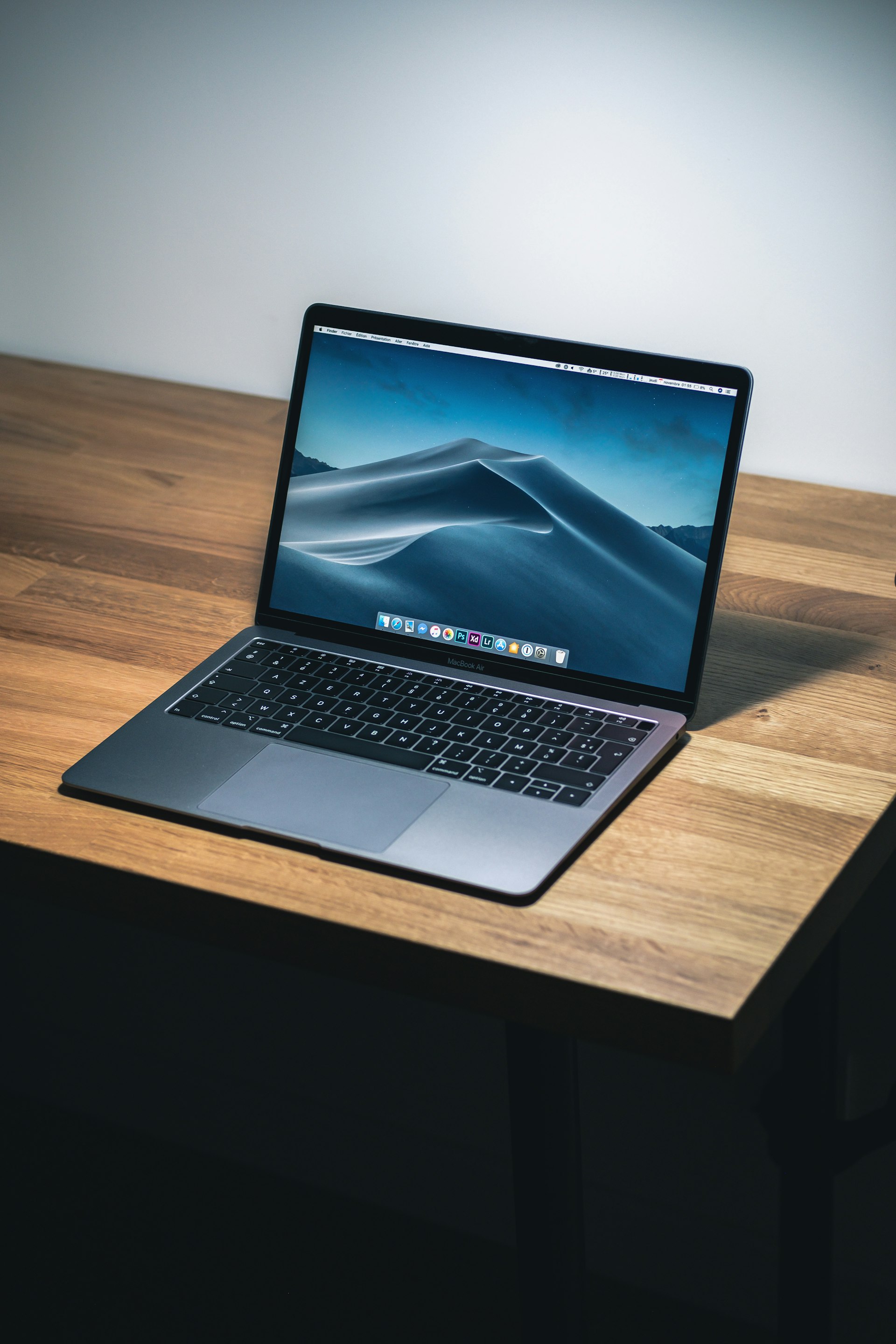
- On the built-in keyboard, press and hold Shift (left side), Control (left side) and Option (left side).
- While holding those three, press and hold the power button.
- Keep holding all four for 10 seconds.
- Release all keys, then press the power button to turn on the Mac.
Intel desktop (T2 or not)
Apple's desktop steps are identical for T2 and non-T2 desktops:
- Shut down your Mac, then unplug the power cord.
- Wait 15 seconds, then plug the power cord back in.
- Wait 5 seconds, then press the power button to turn on the Mac.
Which reset for which symptom
Apple's symptom lists are short, so this table keeps to them. Anything outside them is a diagnosis you have to make yourself.
| Symptom | Apple's list it appears in | Reset to try (Intel Mac) |
|---|---|---|
| Battery is not charging | SMC page | SMC |
| Mac is not turning on | SMC page | SMC |
| Fans are running fast | SMC page | SMC |
| Laptop gets too warm | SMC page | SMC |
| Built-in camera is not working | SMC page | SMC |
| Sound volume wrong | NVRAM page | NVRAM |
| Display resolution wrong | NVRAM page | NVRAM |
| Wrong startup disk selected | NVRAM page | NVRAM |
| Time zone wrong | NVRAM page | NVRAM |
| Settings reset every time you unplug a desktop | NVRAM page | Service: NVRAM battery |
On an Apple silicon Mac, every row of that table starts the same way: restart, and if needed shut down and turn it on again.
When Someone Says "Reset the PRAM or SMC" on an Apple Silicon Mac
Forum advice and old tutorials still tell M-series owners to hold Option-Command-P-R or the SMC keys. Neither exists for them. The useful translation is to climb this ladder, stopping as soon as the problem is gone. Every rung comes from an Apple page.
- Restart. Apple Menu, Restart. This is the entire official SMC "reset", and NVRAM needs no action.
- Shut down fully, then power on. Apple lists Shut Down, then pressing the power button, as the alternative to a restart on its SMC page. Plugging the Mac into power first is part of Apple's instruction. Apple does not give a wait time. Many guides say to wait 30 seconds, which is harmless but is a community habit, not an Apple requirement.
- Force the Mac off if it will not shut down. Apple's repeated wording across its startup pages: press and hold the power button for up to 10 seconds, until the Mac turns off. On laptops with Touch ID, that is the Touch ID button.
- Safe mode, to see whether software that loads at startup is the cause. Apple's safe mode page says it prevents certain software from loading (login items, extensions not required by macOS, fonts not installed by macOS), performs a basic check of the startup disk, and clears some system caches. See the next section for the steps.
- Apple Diagnostics, to find out whether it is hardware. Steps below.
- macOS Recovery and reinstall. Apple's safe mode page says that if the issue continues in safe mode, the easiest and most likely solution is to reinstall macOS, and that reinstalling macOS does not remove your personal files. Recovery steps are in Apple's Recovery page.
- DFU revive, the last resort. For firmware-level problems on Apple silicon and T2 Macs. See below.
Safe mode on Apple silicon
From Apple's page (published December 5, 2025):
- Make sure your Mac is turned off. If you cannot shut it down normally, hold the power button for up to 10 seconds until it turns off.
- Press and hold the power button. As you continue holding it, the Mac turns on and loads startup options. Release when you see "Loading startup options" or the Options icon.
- Select your startup disk (named Macintosh HD unless you renamed it).
- Press and hold Shift, then click "Continue in Safe Mode" under the disk. The Mac restarts.
- At the login window you might see "Safe Boot" in red in the upper-right corner. Log in. You might be asked to log in again.
On an Intel Mac, safe mode is: turn on or restart, then immediately hold Shift until the login window appears. Apple adds that an Intel Mac with a firmware password cannot start up in safe mode.
To check whether you are in safe mode, hold Option, choose System Information from the Apple menu, click Software, and look for "Boot Mode: Safe". To leave, choose Restart from the Apple menu.
Apple's note on interpreting the result: if the problem does not happen in safe mode and does not come back after a normal restart, something safe mode did (the disk check or cache clearing) may have fixed it. If it returns, a login item or other software that safe mode blocks is the cause; Apple suggests removing login items in System Settings or testing with a new user account.
Apple Diagnostics on Apple silicon
From Apple's Apple Diagnostics page (published December 19, 2025):
- Install the latest macOS updates if you can, then shut the Mac down.
- Disconnect all external devices except keyboard, mouse, display, Ethernet (if used) and power.
- Press and hold the power button until startup options appear and you see Options, then release.
- Press and hold Command-D until the Mac restarts.
- Follow the onscreen instructions. If asked to review terms, you may be offered "Run Offline"; Apple says to click it unless Apple Support or a technician started an online session.
In macOS Tahoe 26 and later you are asked to choose a specific diagnostic, such as the built-in display, keyboard or trackpad. In earlier versions it is automatic. On an Intel Mac the start is simply holding D at startup (or Option-D if D does not work), released when you see a progress bar or a language prompt. Apple says to give the reference code you receive to the repair provider if the Mac needs service.
DFU revive: last resort, not a reset
Apple's firmware revive and restore page is for rare cases on an Apple silicon or T2 Mac. Its listed triggers are: the Mac starts up to an exclamation point in a circle, starts to a blank screen that other blank-screen fixes do not resolve, shows the status light pattern for firmware recovery mode, or has a macOS installation issue that other fixes did not resolve. Apple says these can occur in rare circumstances such as a power failure interrupting a macOS installation.
You need a second Mac running macOS 14 or later, connected to the internet with room for the download (Apple says 32 GB should be more than enough), and a USB-C to USB-C cable that supports data and charging. Apple says not to use a Thunderbolt 3 cable. Entering DFU mode is different for each type:
- Apple silicon laptop: hold the power button up to 10 seconds to turn off, then press and release it and immediately hold left Control, left Option, right Shift and power; hold all four about 10 seconds, release the keys but keep holding power for up to 10 more seconds until the host Mac shows a DFU window.
- T2 laptop: same four keys, held for about 3 seconds until the host Mac shows the DFU window.
- Desktop: unplug, hold the power button, plug in while holding, keep holding up to 10 seconds.
In the DFU window, try Revive Mac first. Apple says it is faster than restoring and does not erase the Mac. Restore Mac erases it and returns it to factory settings, so it is the step after Revive fails, not before. Neither is an NVRAM or SMC reset; I include them because they are the only deeper hardware-level options Apple documents for these Macs.
Terminal and the nvram Command
You may see nvram -c recommended as the Apple silicon "NVRAM reset". Apple's NVRAM page does not mention it. What follows is only what the command's own manual page documents (man nvram on macOS):
# Print all firmware variables
nvram -p

# Print them in XML format
nvram -xp

# Delete one named variable (needs administrator privileges for some variables)
sudo nvram -d variable-name

# Delete ALL firmware variables
sudo nvram -c

# Force pending changes to be written to storage
sudo nvram -s
The manual page describes -c as deleting all of the firmware variables and -d name as deleting the named one. It also says that changes are saved automatically, but are buffered in memory if a write occurred in the last 15 minutes, and are saved on a clean shutdown or restart or a forced nvram -s. The manual page does not say that -c is the same as the Option-Command-P-R reset, and it does not describe what clearing everything does on an Apple silicon Mac. I could not find a source that does, so I do not recommend nvram -c as a fix. If you are following a specific instruction from a vendor, run nvram -p first and save the output so you can see what you changed.
Troubleshooting Common Issues
The key combination does nothing
Apple's guidelines for startup key combinations (the page covers Intel-based Macs; Apple silicon uses the power-button startup options screen):
- Hold all keys together, not one at a time.
- Shut down first. If the combination does not work on a restart, shut down, or if you cannot, hold the power button up to 10 seconds until the Mac turns off. Then hold the combination after pressing the power button.
- Wait a few seconds before pressing keys if you use an external keyboard, so the Mac can recognize it. Some keyboards flash a light at startup to show they are ready.
- Use a wired or built-in keyboard. If your keyboard is wireless, plug it in if possible. On a laptop, use the built-in keyboard.
- Avoid PC keyboards, such as ones with a Windows logo; try one made for Mac.
- Firmware password. Apple says some key combinations do not work with a firmware password set. Turn it off first.
- Boot Camp. If you start up from Windows with Boot Camp, set Startup Disk preferences to macOS, then shut down and try again.
Settings keep resetting after an NVRAM reset
On an Intel desktop, Apple points to the small battery NVRAM uses when the Mac is unplugged. If volume or time zone reset every time you shut down and unplug, the Mac may need service. If it only happens on a laptop, run Apple Diagnostics and check the System Settings entry for the setting itself (for example, Date and Time under General).
The SMC reset on a T2 laptop turned the Mac on
Apple warns in the T2 steps that the Mac might turn on when you hold the three keys, and that if it is on it will turn off while you hold the power button. That is expected, not a failure. Keep following the timing: 7 seconds with the three keys, then 7 more seconds with the power button added.
The Mac still will not charge, run cool or start after the right reset
At that point Apple's own route is Apple Diagnostics, then service. Check also that the symptom is not in macOS settings. For battery and charging behavior in the current OS, see Mac battery charge limit in macOS Tahoe and macOS Tahoe battery diagnostics. For a Mac that will not start properly after an update, see When a macOS update goes wrong and the Mac startup problems guide.
The problem looks like software, not hardware
Slow performance, high CPU and sleep and wake trouble are not on Apple's NVRAM or SMC symptom lists. Resetting them first mostly wastes time. Start with Activity Monitor, the Mac running slow guide or the Mac sleep problems guide.
FAQ
Is PRAM the same as NVRAM?
Yes for the purposes of this reset. Apple's page names the memory "NVRAM (or PRAM)" and uses one procedure for both: on an Intel Mac, shut down, turn on, and hold Option, Command, P and R together for about 20 seconds. The PRAM label is older, and people still search for it, so you will see both terms in guides.
How do I reset the PRAM on an M1, M2, M3, M4 or M5 Mac?
You do not. Apple says the NVRAM reset steps do not apply to Macs with Apple silicon and are not needed on them. If a setting such as volume or display resolution is wrong, restart the Mac and then check it in System Settings. If it persists, use the escalation steps above, starting with a full shutdown and safe mode.
How do I reset the SMC on a MacBook Air or Pro?
It depends on the chip. Apple silicon: restart or shut down and turn it on, nothing else. 2018 to 2020 Intel with T2: left Control, left Option and right Shift for 7 seconds, add the power button for 7 more. Intel without T2: left Shift, left Control, left Option and power for 10 seconds. Use the Mac startup key tool if unsure.
Does resetting the SMC or NVRAM delete my files?
Apple's pages do not describe either reset as touching your files, and the NVRAM page says only that you might need to readjust settings that were reset, such as sound volume and display resolution. The SMC page says resetting it does not affect NVRAM or PRAM. DFU Restore, by contrast, erases the Mac, so do not confuse it with these resets.
How do I reset the SMC on an iMac or Mac mini?
For an Intel desktop, with or without T2, Apple gives the same steps: shut down, unplug the power cord, wait 15 seconds, plug it back in, wait 5 seconds, then press the power button. There are no keys to hold. On an Apple silicon iMac or Mac mini, just restart or shut down and power on.
How long do I hold Option-Command-P-R?
Apple says to release the keys after about 20 seconds, during which the Mac might appear to restart, for example by playing the startup sound more than once or showing the Apple logo more than once. Press the keys right after pressing the power button, hold them together, and do not release on the first restart.
How do I know if I need an SMC reset at all?
Apple says you most likely do not. Its list of reasons on Intel Macs is: the battery is not charging, the Mac is not turning on, fans are running fast, a laptop gets too warm, or the built-in camera is not working. If your problem is not on that list, resetting the SMC is unlikely to be the fix.
What if my Mac is not recognizing the keys at startup?
Shut down first, or hold the power button up to 10 seconds to force it off. Then hold the combination right after pressing the power button. Use the built-in or a wired Mac keyboard, wait a few seconds if you use an external one, and turn off a firmware password if one is set.
Conclusion
The honest summary of the old advice is that only a small part of it survived. Option-Command-P-R is real and only for Intel Macs. The SMC reset is real, with four variants, and Apple silicon needs only a restart. Everything else people call a "reset" on a modern Mac is a different tool: safe mode for software, Apple Diagnostics for hardware, Recovery for macOS, DFU for firmware. Work out your chip first, match the symptom to the right reset using Apple's own lists, and stop climbing the ladder when the problem stops.
If you want the exact keys for your model without reading the whole page, the Mac startup key tool will show them, and the Mac model lookup will identify the chip from the model identifier.
Related reading: Mac startup problems guide, When a macOS update goes wrong, macOS security evolution from T2 to Apple silicon, Mac sleep problems guide.