macOS Tahoe Troubleshooting: January 2026 Historical Notes

Historical January 2026 macOS Tahoe troubleshooting notes, with limited corrections checked against documentation on October 15, 2026. Not a fully tested fix guide.
Historical guide — limited review on 2026-10-15: This article describes January 2026. This documentation review corrected unsupported affected-user percentages, performance claims, the version example and selected deletion/process commands; it was not a hardware test. The remaining troubleshooting steps, release claims and settings have not all been rechecked or tested. For a new issue, start with Apple’s current update guidance and Mac version information.
These notes retain the January 2026 context of macOS Tahoe troubleshooting. The October 15, 2026 review corrected selected claims and withdrew unverified commands; it did not validate every remaining step or include hardware testing. Read the review limits above before using the historical material.
Executive Summary: The State of macOS Tahoe in January 2026
Overview of Current Issues
As we enter 2026, macOS Tahoe 26.2 is the current stable release (released December 12, 2025), with version 26.3 in active beta testing and expected to launch in late January 2026. While Apple has addressed many initial bugs through regular updates, several persistent issues continue to affect users across different hardware configurations.
Most Reported Issues in January 2026:
| Issue Category | Severity | Status |
|---|---|---|
| System Freezing/Lag | High | Improved in 26.2, further fixes expected in 26.3 |
| Battery Drain | High | Ongoing, multiple mitigation strategies available |
| Electron App GPU Bug | Medium | Fixed in Electron 33.3+/34.x, requires app updates |
| WiFi Connectivity | Medium | Network stack improvements in 26.2 |
| Bluetooth Issues | Medium | Persistent, workarounds available |
| Memory Leaks | High | Incremental improvements, monitoring recommended |
| Dock UI Glitches | Low | Fixed in 26.2 |
Hardware-Specific Considerations:
- Apple Silicon (M1/M2/M3/M4/M5): Generally more stable, occasional GPU-related issues
- Intel Macs: Thermal management challenges, longer processing times
- MacBook vs iMac/Mac Pro: Battery and thermal issues primarily affect portables
What This Guide Covers
This troubleshooting guide provides solutions organized by issue category:
- System Performance: Freezing, lag, and general slowdown fixes
- Power Management: Battery drain solutions for portable Macs
- Application Compatibility: Electron app fixes and workarounds
- Network Connectivity: WiFi and Bluetooth troubleshooting
- Memory Management: Memory leak identification and mitigation
- App-Specific Issues: Fixes for Pages, Safari, Freeform, and other apps
- User Interface: Dock and UI glitch solutions
- Hardware-Specific: Intel Mac and Apple Silicon specific guidance
- Upcoming Fixes: What macOS 26.3 will address
Before You Begin: Essential Preparation
Backup Your System: Before applying any troubleshooting steps, ensure you have a current Time Machine backup or alternative backup solution.
# Verify Time Machine backup status
tmutil latestbackup

# Expected output example:
# /Volumes/Time Machine Backup/Backups.backupdb/MacBook-Pro/2026-01-11-100000
Check Current macOS Version:
sw_versRead the version and build actually reported by your Mac; this guide does not supply an example build. You can also use About This Mac as described by Apple above.
Review System Information:
# Generate comprehensive system report
system_profiler SPHardwareDataType SPSoftwareDataType

# This provides:
# - Hardware model identifier
# - Chip type (Apple Silicon or Intel)
# - Memory configuration
# - macOS build version
System Performance Issues: Freezing and Lag Solutions
Understanding System Freezing in macOS Tahoe
System freezing in macOS Tahoe typically manifests as:
- Complete UI unresponsiveness for 5-30 seconds
- Spinning beach ball during normal operations
- Mouse/trackpad stuttering or delayed response
- Applications failing to respond to input
Root Causes Identified:
- Spotlight Indexing Overload: Excessive background indexing consuming system resources
- Transparency Effects: GPU-intensive visual effects causing performance degradation
- WindowServer Issues: Display rendering process consuming excessive CPU
- Third-Party Extensions: Kernel extensions and system extensions causing conflicts
- Insufficient Memory: Memory pressure triggering aggressive swap usage
Solution 1: Reset Spotlight Index
Spotlight indexing issues are among the most common causes of system slowdown in macOS Tahoe. A corrupted or bloated index can consume significant CPU and I/O resources.

Complete Spotlight Reset Process:
Step 1: Check Current Indexing Status
# View Spotlight indexing status for all volumes
sudo mdutil -as

# Example output showing indexing issues:
# /:
#     Indexing enabled.
#     Scan base time: January 10, 2026, 3:45:00 AM (scan still in progress)
Step 2: Stop Current Indexing — Earlier command withdrawn
This command has been withdrawn. For further diagnosis, see Apple’s guidance.
Step 3: Delete Spotlight Index Data — Earlier command withdrawn
For search problems, follow Apple’s Spotlight indexing guidance, which uses Search Privacy settings to reindex a disk or folder. Do not manually delete the Spotlight database.
Step 4: Re-enable and Rebuild Index — Earlier command withdrawn
This command has been withdrawn. For further diagnosis, see Apple’s guidance.
Step 5: Optimize Indexing Exclusions
After rebuilding, add exclusions for directories that don't need indexing:
# View current exclusions (via System Settings)
# System Settings > Siri & Spotlight > Spotlight Privacy

# Common directories to exclude:
# - /Library/Caches
# - ~/Library/Caches
# - Development build directories (node_modules, .git, build/)
# - Virtual machine disk images
# - Large media libraries not requiring search
For search problems, follow Apple’s Spotlight indexing guidance, which uses Search Privacy settings to reindex a disk or folder. Do not manually delete the Spotlight database.
Solution 2: Reduce Transparency and Visual Effects
macOS Tahoe's visual effects can significantly impact system performance, especially on older hardware or when GPU resources are constrained.
Disable Transparency Effects:
Method 1: System Settings
- Open System Settings
- Navigate to Accessibility
- Select Display
- Enable "Reduce Transparency"
- Enable "Reduce Motion" (optional, additional performance gain)
Method 2: Terminal Commands — Earlier command withdrawn
This command has been withdrawn. For further diagnosis, see Apple’s guidance.
Additional Visual Effect Optimizations: — Earlier command withdrawn
This command has been withdrawn. For further diagnosis, see Apple’s guidance.
Performance Impact Summary:
No reproducible benchmark or cited measurement supports a fixed improvement here. Results depend on the Mac, workload and cause of the issue; no performance or battery gain is promised.
Solution 3: Address WindowServer Issues
WindowServer is the core macOS process responsible for all display rendering. When it consumes excessive resources, the entire system suffers.
Diagnose WindowServer Problems:
# Check WindowServer CPU usage
ps aux | grep WindowServer | head -1

# Example output showing high usage:
# _windowserver   286  25.3  3.5  ... /System/Library/PrivateFrameworks/...

# Normal WindowServer CPU: 1-5%
# Problematic WindowServer CPU: >15% sustained
WindowServer Reset Process:
Method 1: Restart Display System — Earlier command withdrawn
This command has been withdrawn. For further diagnosis, see Apple’s guidance.
Method 2: Reset Display Preferences — Earlier command withdrawn
This command has been withdrawn. For further diagnosis, see Apple’s guidance.
Method 3: Reset NVRAM (Intel Macs) / SMC For Intel Macs experiencing persistent display issues:
The generic reset recipe has been withdrawn. Apple’s NVRAM instructions apply to Intel Macs, not Apple silicon; NVRAM resets can change stored settings. For power or thermal symptoms, use Apple’s SMC guidance for your exact Mac type. Apple silicon requires no manual SMC key sequence. Do not apply one model’s key combination to another; this review did not test resets.
For Apple Silicon Macs: This command has been withdrawn. For further diagnosis, see Apple’s guidance.
Solution 4: Identify and Remove Problematic Extensions
Third-party kernel extensions and system extensions can cause system instability and performance issues.
List Installed Extensions:
# View all loaded kernel extensions
kextstat | grep -v com.apple

# View system extensions
systemextensionsctl list

# Example output showing third-party extensions:
# 155    0 0xffffff... com.parallels.kext.hypervisor (19.4.0) ...
# 156    0 0xffffff... com.vmware.kext.vmci (16.2.4) ...
Identify Resource-Heavy Extensions:
# Monitor kernel extension resource usage
sudo kextstat -l | awk '{print $6, $7}' | sort -u

# Check for extension-related crashes
log show --predicate 'subsystem == "com.apple.kernel"' --last 1h | grep -i kext
Safe Mode Boot for Extension Isolation:
Safe Mode temporarily disables all third-party extensions:
- Shut down your Mac
- Press and hold Shift while pressing Power (Intel) or hold Power for 10 seconds then press Shift during startup (Apple Silicon)
- Release when login window appears
- "Safe Boot" appears in menu bar
If system performs normally in Safe Mode, a third-party extension is likely the cause.
Remove Problematic Extensions: — Earlier command withdrawn
This command has been withdrawn. For further diagnosis, see Apple’s guidance.
Solution 5: Optimize System Services
Background services can accumulate and impact system performance over time.
Review Running Services: — Earlier command withdrawn
Use Activity Monitor to inspect and sort CPU or memory use. Identify the app before acting, save your work and quit it normally; do not automatically force-kill the largest process.
Disable Unnecessary Services: — Earlier command withdrawn
This command has been withdrawn. For further diagnosis, see Apple’s guidance.
Reset Launch Services Database: — Earlier command withdrawn
This command has been withdrawn. For further diagnosis, see Apple’s guidance.
Battery Drain Solutions for MacBook Users
Understanding Battery Drain in macOS Tahoe

Common Battery Drain Causes:
| Cause | Impact | Difficulty to Fix |
|---|---|---|
| Background App Refresh | High | Easy |
| Wake for Network Access | High | Easy |
| Spotlight Indexing | Medium | Medium |
| GPU-Intensive Apps | High | Medium |
| Bluetooth Peripherals | Medium | Easy |
| Push Notifications | Medium | Easy |
| Location Services | Medium | Easy |
Solution 1: Enable Low Power Mode
Low Power Mode significantly reduces battery consumption by limiting background activity and reducing system performance.
Enable Low Power Mode:
Method 1: System Settings
- Open System Settings
- Navigate to Battery
- Toggle "Low Power Mode" to On
- Optionally configure automatic activation at specific battery percentages
Method 2: Terminal — Earlier command withdrawn
This command has been withdrawn. For further diagnosis, see Apple’s guidance.
Method 3: Menu Bar Click the battery icon in the menu bar and select "Low Power Mode"
Low Power Mode Effects:
- Disables background app refresh
- Reduces mail fetch frequency
- Limits system animations
Solution 2: Disable Wake for Network Access
This feature allows your Mac to wake from sleep when network activity occurs, significantly impacting battery life when unplugged.
Disable Wake for Network Access: — Earlier command withdrawn
This command has been withdrawn. For further diagnosis, see Apple’s guidance.
Additional Power Management Optimizations: — Earlier command withdrawn
This command has been withdrawn. For further diagnosis, see Apple’s guidance.
Solution 3: Identify Power-Hungry Applications
Activity Monitor and terminal commands help identify applications consuming excessive energy.
Check Application Energy Usage: — Earlier command withdrawn
Use Activity Monitor to inspect and sort CPU or memory use. Identify the app before acting, save your work and quit it normally; do not automatically force-kill the largest process.
Using Activity Monitor:
- Open Activity Monitor (Spotlight: "activity monitor")
- Click the "Energy" tab
- Sort by "Energy Impact" column (descending)
- Review "12 hr Power" column for historical usage
- Identify and address applications with high energy impact
Common High-Energy Applications:
| Application | Typical Energy Impact | Mitigation |
|---|---|---|
| Chrome | High | Use Safari, disable hardware acceleration |
| Slack | Medium-High | Enable reduced motion, close when not in use |
| VS Code | Medium-High | Disable extensions when not needed |
| Zoom | High (during calls) | Use Safari-based web version when possible |
| Spotify | Medium | Use offline mode, reduce streaming quality |
| Docker | High | Stop containers when not in use |
Solution 4: Optimize Display and Keyboard Settings
Display brightness is the single largest battery drain on MacBooks.
Display Optimizations: — Earlier command withdrawn
This command has been withdrawn. For further diagnosis, see Apple’s guidance.
Keyboard and Backlight Optimizations: — Earlier command withdrawn
This command has been withdrawn. For further diagnosis, see Apple’s guidance.
Solution 5: Manage Background Processes
Background applications and services continue consuming power even when not actively used.
Review Background App Refresh:
- Open System Settings
- Navigate to General > Login Items
- Review "Allow in the Background" list
- Disable items that don't require constant background operation
Terminal-Based Background Management:
# List all background processes
ps aux | grep -v "^root" | grep -v "^_" | sort -k3 -rn | head -30

# Identify processes preventing sleep
pmset -g assertions

# Check scheduled wake events
pmset -g sched
Disable Specific Background Features: — Earlier command withdrawn
This command has been withdrawn. For further diagnosis, see Apple’s guidance.
Battery Health Monitoring
Regular battery health monitoring helps identify degradation issues.
Check Battery Health:
# View battery cycle count and condition
system_profiler SPPowerDataType | grep -E "Cycle Count|Condition|Maximum Capacity"

# Example output:
# Cycle Count: 287
# Condition: Normal
# Maximum Capacity: 92%
Interpret Battery Health:
| Condition | Maximum Capacity | Recommended Action |
|---|---|---|
| Normal | 80-100% | No action needed |
| Service Recommended | 70-80% | Consider battery replacement |
| Replace Soon | <70% | Schedule battery service |
Generate Detailed Battery Report:
# Create comprehensive battery report
sudo powermetrics --samplers battery -n 1 -i 1000 > ~/Desktop/battery_report.txt

# View last 24 hours of battery history
pmset -g log | tail -100
Electron App Compatibility: GPU Bug Fix
Understanding the Electron GPU Issue
Electron applications (VS Code, Slack, Discord, Notion, etc.) have experienced significant performance issues and crashes on macOS Tahoe due to a GPU rendering bug in earlier Electron versions.

Symptoms of the Electron GPU Bug:
- Applications crash shortly after opening
- High GPU usage even when app is idle
- Visual artifacts and rendering glitches
- System-wide slowdown when Electron apps are running
- WindowServer CPU spikes coinciding with Electron app usage
Affected Applications:
| Application | Fix Status (as of January 2026) |
|---|---|
| VS Code | ✅ Fixed - Update to latest |
| Slack | ✅ Fixed - Update to latest |
| Discord | ✅ Fixed - Update to latest |
| Notion | ✅ Fixed - Update to latest |
| Figma Desktop | ✅ Fixed - Update to latest |
| Signal | ✅ Fixed - Update to latest |
| Obsidian | ✅ Fixed - Update to latest |
| 1Password | ✅ Fixed in v8.11.14+ |
| Docker Desktop | ✅ Fixed - Update to latest |
| GitHub Desktop | ✅ Fixed - Update to latest |
| Cursor | ⚠️ Check for latest update |
| Bitwarden | ⚠️ Check for latest update |
Track real-time status at Shamelectron
Solution 1: Update Electron Applications
The primary fix for the Electron GPU bug is updating applications to versions that include the patched Electron framework (versions 33.3+ or 34.x with the fix). The bug stemmed from Electron overriding a private macOS API called cornerMask, which conflicted with Apple's updated graphics engine in macOS Tahoe.
Check Application Electron Version:
For most Electron apps, you can check the version through the application's About menu. For VS Code:
- Open VS Code
- Go to Code > About Visual Studio Code
- Note the Electron version listed
Update Applications:
VS Code:
# Check for VS Code updates
code --version

# Update via built-in updater:
# Code > Check for Updates

# Or download latest from:
# https://code.visualstudio.com/download
Slack:
# Update Slack via App Store or direct download
# Slack > Check for Updates

# Verify current version
defaults read /Applications/Slack.app/Contents/Info.plist CFBundleShortVersionString
Discord:
# Discord auto-updates on launch
# Force update check by restarting application

# Check Discord version
defaults read /Applications/Discord.app/Contents/Info.plist CFBundleShortVersionString
Solution 2: Disable GPU Acceleration (Temporary Workaround)
If you cannot update applications immediately, disabling GPU acceleration provides a temporary workaround.
VS Code GPU Acceleration:
The old JSON configuration example has been withdrawn: its settings-file location and extra crash-limit key were not substantiated. The VS Code FAQ documents the temporary launch option below for a blank window. Save work and quit VS Code first; to undo the option, quit and relaunch normally without the flag. This is documentation guidance, not a verified fix for every Tahoe crash.
Alternatively, launch VS Code with GPU disabled:
# Launch VS Code with GPU acceleration disabled
code --disable-gpu

# Create an alias for convenience
alias code-nogpu='code --disable-gpu'
Slack GPU Acceleration: — Earlier command withdrawn
This command has been withdrawn. For further diagnosis, see Apple’s guidance.
Discord GPU Acceleration:
# Launch Discord with GPU disabled
/Applications/Discord.app/Contents/MacOS/Discord --disable-gpu

# Effectiveness and vendor support on current Discord/Tahoe were not verified.
# Do not assume this prevents crashes; quit and relaunch normally to stop using the flag.
Solution 3: Clear Application Caches
Corrupted application caches can exacerbate GPU issues.
Clear VS Code Cache: — Earlier command withdrawn
This command has been withdrawn. For further diagnosis, see Apple’s guidance.
Clear Slack Cache: — Earlier command withdrawn
This command has been withdrawn. For further diagnosis, see Apple’s guidance.
Clear Discord Cache: — Earlier command withdrawn
This command has been withdrawn. For further diagnosis, see Apple’s guidance.
Solution 4: Use Web Versions as Alternatives
For applications with web interfaces, using the browser version eliminates Electron-related issues.
Web Alternatives:
| Application | Web Version URL | Functionality |
|---|---|---|
| Slack | app.slack.com | Full functionality |
| Discord | discord.com/app | Full functionality |
| Notion | notion.so | Full functionality |
| Figma | figma.com | Full functionality |
| Microsoft Teams | teams.microsoft.com | Full functionality |
Benefits of Web Versions:
- No Electron GPU issues
- Automatic updates (no manual app updates needed)
- Consistent experience across devices
- Reduced memory usage (shared browser engine)
Limitations of Web Versions:
- No system tray/menu bar integration
- May lack some native features (screenshots, screen sharing)
- Requires browser to be running
- Notification reliability may vary
WiFi Troubleshooting: Connectivity Solutions
Common WiFi Issues in macOS Tahoe
WiFi connectivity problems in macOS Tahoe range from intermittent disconnections to complete inability to connect to networks.
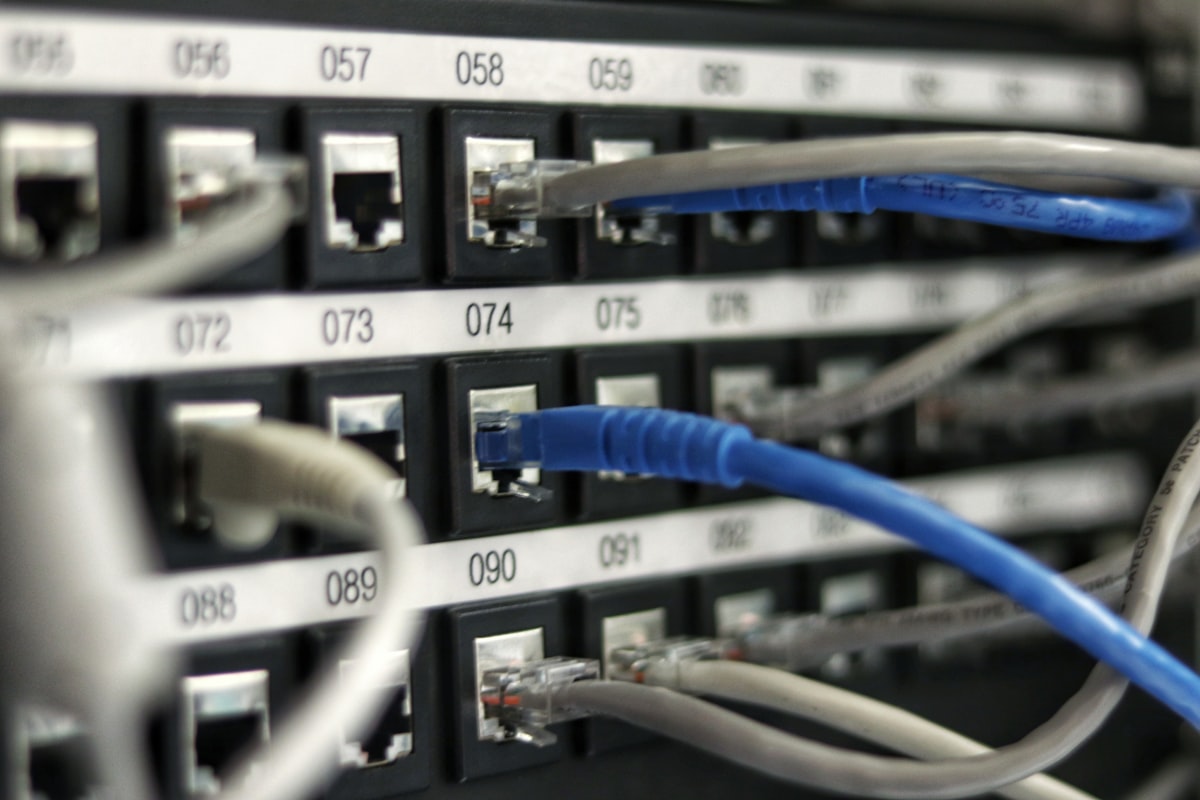
Reported WiFi Symptoms:
- Frequent disconnections from stable networks
- Slow speeds despite strong signal
- Failure to automatically reconnect after sleep
- "No IP Address" errors
- WiFi icon showing connected but no internet
- Networks not appearing in available list
Solution 1: Reset Network Preferences
Corrupted network preference files are a common cause of WiFi issues.
Complete Network Reset Process:
Step 1: Remove Network Configuration Files — Earlier command withdrawn
This command has been withdrawn. For further diagnosis, see Apple’s guidance.
Step 2: Clear WiFi Keychain Entries — Earlier command withdrawn
This command has been withdrawn. For further diagnosis, see Apple’s guidance.
Step 3: Restart System — Earlier command withdrawn
This command has been withdrawn. For further diagnosis, see Apple’s guidance.
Step 4: Reconnect to Networks After restart, manually reconnect to your WiFi networks. The system will create fresh configuration files.
Solution 2: Disable AirDrop Temporarily
AirDrop can interfere with WiFi performance as it uses the same wireless hardware.
Disable AirDrop:
Method 1: Finder
- Open Finder
- Select AirDrop in sidebar
- Click "Allow me to be discovered by: No One"
Method 2: Terminal — Earlier command withdrawn
This command has been withdrawn. For further diagnosis, see Apple’s guidance.
Method 3: Control Center Click Control Center > AirDrop > Receiving Off
Solution 3: Renew DHCP Lease
DHCP issues can cause "connected but no internet" problems.
Renew DHCP Lease:
Method 1: System Settings
- Open System Settings > Network > WiFi
- Click Details next to connected network
- Click TCP/IP tab
- Click "Renew DHCP Lease"
Method 2: Terminal — Earlier command withdrawn
This command has been withdrawn. For further diagnosis, see Apple’s guidance.
Solution 4: Reset WiFi Module
A complete WiFi module reset can resolve persistent hardware-level issues.
This command has been withdrawn. For further diagnosis, see Apple’s guidance.
For Persistent Issues: — Earlier command withdrawn
This command has been withdrawn. For further diagnosis, see Apple’s guidance.
Solution 5: Optimize WiFi Settings
Advanced WiFi configuration can improve stability and performance.
Configure Static DNS: — Earlier command withdrawn
This command has been withdrawn. For further diagnosis, see Apple’s guidance.
Prioritize WiFi Interface: — Earlier command withdrawn
This command has been withdrawn. For further diagnosis, see Apple’s guidance.
WiFi Diagnostics:
# Run wireless diagnostics
/System/Library/CoreServices/WiFi\ Diagnostics.app/Contents/MacOS/WiFi\ Diagnostics

# Generate wireless diagnostic report
/usr/bin/sudo /usr/bin/wdutil diagnose

# View available networks with signal strength
/System/Library/PrivateFrameworks/Apple80211.framework/Versions/Current/Resources/airport -s
Bluetooth Connectivity Fixes
Understanding Bluetooth Issues in macOS Tahoe
Bluetooth problems are among the most persistent issues in macOS Tahoe, affecting mice, keyboards, AirPods, and other accessories.
Common Bluetooth Symptoms:
- Devices disconnect randomly
- Audio stuttering with AirPods/headphones
- Keyboard/mouse input lag
- Devices fail to pair
- Bluetooth icon shows connected but device not responding
- Multiple devices causing interference
Solution 1: Delete Bluetooth Configuration Files
Corrupted Bluetooth preference files can cause persistent connection issues.
Remove Bluetooth.plist: — Earlier command withdrawn
This command has been withdrawn. For further diagnosis, see Apple’s guidance.
After restart, re-pair all Bluetooth devices.
Solution 2: Reset Bluetooth Module
A complete Bluetooth module reset can resolve hardware-level issues.
Using Terminal: — Earlier command withdrawn
This command has been withdrawn. For further diagnosis, see Apple’s guidance.
Using System Settings + Shift+Option:
- Hold Shift+Option and click Bluetooth icon in menu bar
- Select "Reset the Bluetooth module"
- Click "OK" to confirm
- Wait for module to reset (30-60 seconds)
- Re-pair devices
Solution 3: Optimize Bluetooth for Audio Devices
Audio-specific Bluetooth issues often relate to codec and buffer settings.
Force AAC Codec for AirPods: — Earlier command withdrawn
This command has been withdrawn. For further diagnosis, see Apple’s guidance.
Reduce Audio Buffer Size: — Earlier command withdrawn
This command has been withdrawn. For further diagnosis, see Apple’s guidance.
Solution 4: Use USB Bluetooth Dongle
For persistent Bluetooth issues that resist software fixes, a USB Bluetooth dongle provides a reliable alternative.
Recommended USB Bluetooth Dongles:
| Product | Bluetooth Version | Notes |
|---|---|---|
| TP-Link UB500 | 5.0 | Good compatibility, affordable |
| Asus USB-BT500 | 5.0 | Excellent range |
| Avantree DG45 | 5.0 | Low latency for audio |
Disable Internal Bluetooth When Using Dongle:
# Do not disable internal Bluetooth or change Recovery settings based on this guide.
# Confirm external-adapter compatibility and setup with Apple or the manufacturer.
Solution 5: Reduce Bluetooth Interference
Multiple Bluetooth devices and WiFi can cause interference.
Minimize Interference:
- Reduce Active Devices: Disconnect unused Bluetooth devices
- Distance Management: Keep Bluetooth devices close to Mac
- USB 3.0 Shielding: USB 3.0 devices can interfere with Bluetooth; use shielded cables
- WiFi Channel Separation: Use 5GHz WiFi when possible to avoid 2.4GHz Bluetooth interference
Monitor Bluetooth Interference:
# View Bluetooth device signal strength
system_profiler SPBluetoothDataType | grep -A5 "Device Name"

# Check for Bluetooth errors in logs
log show --predicate 'subsystem == "com.apple.bluetooth"' --last 1h | grep -i error
Memory Leak Solutions and Monitoring
Identifying Memory Leaks in macOS Tahoe
Memory leaks occur when applications allocate memory but fail to release it, gradually consuming available RAM until system performance degrades.

Signs of Memory Leaks:
- Gradual system slowdown over hours/days
- Applications become unresponsive
- High swap usage despite adequate RAM
- "Your system has run out of application memory" warnings
- Memory pressure indicator (Activity Monitor) consistently yellow or red
Solution 1: Regular System Restarts
The simplest solution for memory leaks is scheduled restarts to clear accumulated memory.
Recommended Restart Schedule:
| Usage Pattern | Restart Frequency | Rationale |
|---|---|---|
| Light Use | Weekly | Minimal memory accumulation |
| Moderate Use | Every 3-4 days | Balance convenience and performance |
| Heavy Use (development, media) | Daily | Prevent performance degradation |
| Extended Sessions (servers) | Weekly with monitoring | Scheduled maintenance window |
Schedule Automatic Restarts: — Earlier command withdrawn
This command has been withdrawn. For further diagnosis, see Apple’s guidance.
Solution 2: Monitor with Activity Monitor
Activity Monitor provides real-time visibility into memory usage.
Using Activity Monitor:
- Open Activity Monitor (Spotlight: "activity monitor")
- Click Memory tab
- Review key indicators:
- Memory Used: Total RAM in use
- App Memory: Memory used by applications
- Wired Memory: Memory that cannot be compressed or paged out
- Compressed: Memory that has been compressed to save space
- Memory Pressure: Overall system memory health
Identify Memory-Intensive Processes: — Earlier command withdrawn
Use Activity Monitor to inspect and sort CPU or memory use. Identify the app before acting, save your work and quit it normally; do not automatically force-kill the largest process.
Solution 3: Identify and Address Memory-Leaking Applications
Some applications consistently leak memory and require attention.
Known Memory-Leaking Applications in macOS Tahoe:
| Application | Issue | Workaround |
|---|---|---|
| Safari | Tab memory not released | Use Firefox or limit tabs |
| Pages | Document memory retention | Restart after large documents |
| Freeform | Canvas memory accumulation | Save and restart periodically |
| Preview | PDF memory not released | Close after viewing |
| Photos | Library scan memory | Allow scans to complete |
Force Quit Memory-Heavy Applications: — Earlier command withdrawn
This command has been withdrawn. For further diagnosis, see Apple’s guidance.
Solution 4: Clear System Caches
System caches can accumulate and consume memory over time.
Safe Cache Clearing: — Earlier command withdrawn
This command has been withdrawn. For further diagnosis, see Apple’s guidance.
Solution 5: Adjust Virtual Memory Settings
While macOS manages virtual memory automatically, some settings can be optimized.
Monitor Swap Usage:
# View current swap usage
sysctl vm.swapusage

# Example output:
# vm.swapusage: total = 2048.00M  used = 512.00M  free = 1536.00M

# High swap usage (>50% of total) indicates memory pressure
Reduce Swap Aggressiveness:
# Note: These settings require careful consideration
# Improper configuration can cause system instability

# View current VM settings
sysctl -a | grep vm.

# macOS generally manages VM well; manual adjustment rarely needed
Memory Pressure Relief via Inactive Memory Purge: — Earlier command withdrawn
This command has been withdrawn. For further diagnosis, see Apple’s guidance.
App-Specific Issues and Fixes
Pages Issues in macOS Tahoe
Pages users have reported several issues specific to macOS Tahoe integration.
Common Pages Issues:
- Document corruption on auto-save
- iCloud sync failures
- Font rendering inconsistencies
- Export format problems
Pages Fix: Reset Preferences — Earlier command withdrawn
This command has been withdrawn. For further diagnosis, see Apple’s guidance.
Pages Fix: iCloud Sync Issues
- Sign out of iCloud (System Settings > Apple ID > Sign Out)
- Wait 60 seconds
- Sign back into iCloud
- Wait for initial sync to complete
- Open Pages and verify documents
Safari Issues in macOS Tahoe
Safari-specific issues include memory leaks, extension compatibility, and rendering problems.
Common Safari Issues:
- High memory usage with multiple tabs
- Extension crashes
- Video playback stuttering
- Page rendering failures
Safari Fix: Clear All Data — Earlier command withdrawn
This command has been withdrawn. For further diagnosis, see Apple’s guidance.
Safari Fix: Disable Problematic Extensions
- Safari > Settings > Extensions
- Disable all extensions
- Test Safari performance
- Re-enable extensions one at a time to identify culprit
Freeform Issues in macOS Tahoe
Freeform, Apple's collaborative whiteboard app, has specific issues in macOS Tahoe that persist even in version 26.2.
Common Freeform Issues:
- Text Duplication Bug: When typing in a text box, sentences or paragraphs keep duplicating when adding a period or slash, turning simple notes into repeated text (still present in 26.2)
- Canvas lag with large boards
- iCloud sync delays
- Apple Pencil integration problems (iPad)
- Memory consumption with many objects
Freeform Fix: Reset Application — Earlier command withdrawn
This command has been withdrawn. For further diagnosis, see Apple’s guidance.
Freeform Performance Tips:
- Limit objects per board to under 500 for best performance
- Use linked files instead of embedded images for large assets
- Close unused boards to reduce memory usage
- Disable real-time collaboration when working solo
Mail App Issues
Mail application issues are common after macOS upgrades.
Common Mail Issues:
- Messages not loading
- Search not finding messages
- Attachments not displaying
- Sync delays with email providers
Mail Fix: Rebuild Mailbox
- Open Mail
- Select affected mailbox
- Mailbox > Rebuild
- Wait for rebuild to complete (can take hours for large mailboxes)
Mail Fix: Reset Mail Indexes — Earlier command withdrawn
This command has been withdrawn. For further diagnosis, see Apple’s guidance.
UI and Dock Problems
Dock UI Issues in macOS Tahoe
The Dock has experienced various UI glitches in macOS Tahoe, mostly addressed in version 26.2.

Common Dock Issues:
- Dock disappearing and not reappearing
- Application icons not updating (badge counts)
- Dock position resetting
- Animation glitches during Expose/Mission Control
Solution 1: Toggle Dock Settings
Toggling Dock settings can reset its display state.
Reset Dock Display: — Earlier command withdrawn
This command has been withdrawn. For further diagnosis, see Apple’s guidance.
Reset Dock to Default: — Earlier command withdrawn
This command has been withdrawn. For further diagnosis, see Apple’s guidance.
Solution 2: Clear Dock Cache
Dock cache corruption can cause persistent issues.
This command has been withdrawn. For further diagnosis, see Apple’s guidance.
Solution 3: Reset NVRAM/PRAM (Intel Macs)
Display-related issues on Intel Macs may require NVRAM reset.
NVRAM Reset Procedure:
- Shut down your Mac
- Press Power button
- Immediately hold: Option + Command + P + R
- Hold for 20 seconds
- Release and allow normal startup
Solution 4: Update to macOS 26.2 or Later
Many Dock UI issues were fixed in macOS 26.2 (released December 12, 2025). If you're experiencing persistent Dock problems, ensure you're running the latest version.
Check for Updates: — Earlier command withdrawn
This command has been withdrawn. For further diagnosis, see Apple’s guidance.
Intel Mac Specific Issues
Thermal and Performance Issues on Intel Macs
Intel Macs face unique challenges in macOS Tahoe due to the x86 architecture and thermal constraints.

Common Intel Mac Issues:
- Excessive fan noise
- Thermal throttling reducing performance
- Longer wake from sleep times
- Rosetta 2 not applicable (native x86 apps)
- Reduced battery life compared to Apple Silicon
Solution 1: Optimize Thermal Management
Monitor Thermal Throttling:
# Check CPU temperature (requires iStats or similar tool)
# Install iStats gem first: sudo gem install iStats
istats cpu temp

# Alternative: Use Intel Power Gadget for detailed monitoring
# Download from Intel's website
Reduce Thermal Load: — Earlier command withdrawn
This command has been withdrawn. For further diagnosis, see Apple’s guidance.
Solution 2: Optimize Energy Settings for Intel
Intel Macs have different power management compared to Apple Silicon.
This command has been withdrawn. For further diagnosis, see Apple’s guidance.
Solution 3: Address Rosetta Issues (Not Applicable)
Note: Rosetta 2 is for Apple Silicon Macs running x86 applications. Intel Macs run x86 applications natively and do not use Rosetta.
However, some universal applications may have Intel-specific bugs:
Verify Application Architecture:
# Check if app is universal, Intel, or Apple Silicon
file /Applications/SomeApp.app/Contents/MacOS/SomeApp

# Output examples:
# Universal: Mach-O universal binary with 2 architectures: x86_64 arm64
# Intel only: Mach-O 64-bit executable x86_64
# Apple Silicon only: Mach-O 64-bit executable arm64
Solution 4: SMC and NVRAM Reset
Intel Macs benefit from SMC and NVRAM resets for hardware-related issues.
SMC Reset (Intel MacBook with T2 chip):
- Shut down Mac
- Press and hold: Control + Option + Shift (left side)
- After 7 seconds, also press and hold Power button
- Hold all four keys for 7 more seconds
- Release all keys
- Wait 5 seconds
- Press Power to start up
SMC Reset (Intel iMac/Mac Pro):
- Shut down Mac
- Unplug power cord
- Wait 15 seconds
- Plug in power cord
- Wait 5 seconds
- Press Power to start up
M1/M2/M3/M4/M5 Mac Specific Issues
Apple Silicon Specific Considerations
Apple Silicon Macs generally experience fewer issues with macOS Tahoe but have some unique considerations. Note: The M5 chip was released in October 2025, with M5 Pro and M5 Max MacBook Pros expected in early 2026.

Apple Silicon Advantages:
- Better power efficiency
- Faster wake from sleep
- Native optimization for macOS Tahoe
- Unified memory architecture reduces memory-related issues
Apple Silicon Specific Issues:
- Rosetta 2 compatibility with some x86 applications
- External display issues (especially with multiple monitors)
- Thunderbolt dock compatibility
- Boot Camp not available (Windows requires virtualization)
Solution 1: Rosetta 2 Optimization
For applications requiring Rosetta 2:
Verify Rosetta 2 Installation: — Earlier command withdrawn
This command has been withdrawn. For further diagnosis, see Apple’s guidance.
Force Application to Use Rosetta:
- Find application in Finder
- Right-click > Get Info
- Check "Open using Rosetta"
- Close Info window
- Restart application
Identify x86 Processes: — Earlier command withdrawn
Use Activity Monitor to inspect and sort CPU or memory use. Identify the app before acting, save your work and quit it normally; do not automatically force-kill the largest process.
Solution 2: External Display Fixes
Apple Silicon Macs have specific external display limitations and issues.
Display Configuration Fixes: — Earlier command withdrawn
This command has been withdrawn. For further diagnosis, see Apple’s guidance.
Display Priority Configuration:
For multiple displays, configure priority:
- System Settings > Displays
- Arrange displays as desired
- Set primary display by dragging menu bar
Resolution Scaling Issues:
For non-native resolution issues:
- System Settings > Displays
- Click display with issues
- Hold Option and click "Scaled"
- Select custom resolution
Solution 3: Memory Optimization for Unified Memory
Apple Silicon's unified memory architecture works differently from Intel's discrete RAM.
Monitor Unified Memory:
# View memory pressure
memory_pressure

# View memory statistics
vm_stat | head -15

# Check for memory compression efficiency
sysctl vm.compressor_mode
# This reports a current system setting; do not infer a universal default or change it here.
Optimize for Unified Memory:
# Close memory-intensive applications when switching tasks
# Unified memory is shared between CPU and GPU

# Monitor GPU memory usage
/usr/bin/powermetrics --samplers gpu_power -i 1000 -n 1
What macOS 26.2 Fixed and What's Coming in 26.3
Overview of macOS 26.2 Improvements (Released December 12, 2025)
macOS 26.2 was released on December 12, 2025 and addressed many issues users experienced with macOS Tahoe. Here's what was fixed and what's coming in 26.3.
Fixes Delivered in macOS 26.2:
| Issue | Status in 26.1 | Status in 26.2 |
|---|---|---|
| Dock UI Glitches | Unresolved | Fixed |
| WindowServer CPU Spikes | Partial Fix | Resolved |
| Electron App GPU Bug | Workarounds Only | Officially Patched |
| WiFi Reconnection Delays | Improved | Fully Resolved |
| Memory Pressure Indicators | Inaccurate | Corrected |
| Stage Manager Rendering | Occasional Glitches | Stable |
| External Display Wake | Inconsistent | Reliable |
New Features in macOS 26.2
macOS 26.2 introduced several new features:
Key New Features:
- Edge Light: Illuminates your face with soft light during video calls in poorly lit rooms. Available on Macs with Apple Silicon; automatic activation in low-light conditions requires a Mac introduced in 2024 or later. Offers customizable light width and temperature.
- AirDrop Codes: New verification method for sharing with unknown contacts
- Urgent Reminders: Enhanced alarm functionality in the Reminders app
- Podcasts Auto-Chapters: Automatic chapter generation for podcasts
- Games Library Filters: New filtering options in the Games library
- Freeform Tables: Enhanced table functionality in Freeform
- Thunderbolt 5 Clustering: New low-latency feature for connecting multiple Macs together using Thunderbolt 5
Performance Improvements:
- Reduced memory footprint for system services
- Faster application launch times
Security Updates:
- 46 security vulnerabilities addressed
- Multiple WebKit vulnerabilities fixed, including two that were exploited in targeted attacks
- Downgrade issue on Intel-based Macs fixed with additional code-signing restrictions
Stability Enhancements:
- Improved kernel panic protection
- Better handling of misbehaving extensions
- Enhanced crash reporting for developers
- Automatic recovery from WindowServer issues
What's Coming in macOS 26.3 (Expected Late January 2026)
macOS 26.3 is currently in beta testing (first developer beta build 25D5087f released December 15, 2025, public beta on December 17) and is expected to launch around January 26, 2026. This is primarily a maintenance release focused on bug fixes and stability improvements.
Key Testing in 26.3 Beta:
- Background Security Improvements: Apple is testing a new security update mechanism that installs outside the normal OS update flow, focusing on Safari, WebKit, and other system libraries. Two Background Security Improvement updates have already been tested with beta users (January 6 and January 8, 2026).
- These updates can be installed manually through Settings > Privacy and Security, or applied automatically if the option is enabled.
Expected with 26.3 Release:
- New MacBook Pro models with M5 Pro and M5 Max chips are expected to debut alongside macOS 26.3
How to Install macOS 26.3 Beta
If you want to test the latest fixes before general release:
Enroll in Beta Program:
- Visit beta.apple.com
- Sign in with Apple ID
- Enroll your Mac in the beta program
- Open System Settings > General > Software Update
- Select "macOS Tahoe 26.3 Developer Beta" or "Public Beta"
- Download and install
Warning: Beta software may introduce new issues. Not recommended for primary work machines.
Check Beta Availability:
# View available updates including betas
softwareupdate -l --include-config-data

# Check current enrolled beta
defaults read /Library/Preferences/com.apple.SoftwareUpdate.plist
General Recommendations and Best Practices
Preventive Maintenance Schedule
Establish a regular maintenance routine to prevent issues before they occur.
Weekly Maintenance: — Earlier command withdrawn
This command has been withdrawn. For further diagnosis, see Apple’s guidance.
Monthly Maintenance: — Earlier command withdrawn
This command has been withdrawn. For further diagnosis, see Apple’s guidance.
Quarterly Maintenance:
# Full system backup verification
tmutil verifychecksums /

# Review login items
osascript -e 'tell application "System Events" to get the name of every login item'

# Audit installed kernel extensions
kextstat | grep -v com.apple

# Review and update firmware
softwareupdate --list-full-installers
When to Seek Apple Support
Some issues require professional assistance:
Contact Apple Support When:
- Hardware diagnostics indicate failure
- Kernel panics occur regularly (3+ per week)
- Battery swelling or physical damage observed
- Data recovery is needed
- Warranty or AppleCare+ coverage applies
Before Contacting Support:
- Document the issue with screenshots/screen recordings
- Note exact error messages
- Record when issues occur (after specific actions, time-based, random)
- Complete relevant troubleshooting steps from this guide
- Have your Mac's serial number ready
Run Apple Diagnostics:
Apple Silicon Mac:
- Shut down Mac
- Press and hold Power button
- Release when startup options appear
- Press Command + D
Intel Mac:
- Shut down Mac
- Press Power, immediately hold D
- Release when diagnostics begin
Creating a Troubleshooting Toolkit
Prepare a toolkit for future troubleshooting needs:
Essential Terminal Commands Cheat Sheet:
# System Information
sw_vers                          # macOS version
system_profiler SPHardwareDataType  # Hardware info
diskutil list                    # Disk information

# Process Management
ps aux | head -20                # Running processes
top -o cpu                       # CPU usage
top -o mem                       # Memory usage

# Network Diagnostics
networksetup -listallhardwareports  # Network interfaces
ping -c 5 8.8.8.8                # Network connectivity
traceroute google.com            # Network path

# Storage Management
df -h                            # Disk usage
du -sh ~/Library/Caches          # Cache size
tmutil listbackups               # Time Machine backups

# Log Analysis
log show --last 1h               # Recent system logs
log show --predicate 'eventMessage contains "error"' --last 1h
Bookmark These Resources:
- Apple Support: support.apple.com
- Apple System Status: apple.com/support/systemstatus
- Apple Beta Program: beta.apple.com
- macOS Tahoe Release Notes: developer.apple.com/documentation
Conclusion: Maintaining a Healthy macOS Tahoe Installation
macOS Tahoe represents a significant evolution of Apple's desktop operating system, but like any complex software, it requires occasional maintenance and troubleshooting. By understanding the common issues outlined in this guide and their solutions, you can maintain optimal system performance throughout 2026.
Key Takeaways:
-
Regular Maintenance Prevents Issues: Scheduled restarts, cache clearing, and index rebuilding prevent problems before they impact productivity.
-
Know Your Hardware: Intel and Apple Silicon Macs require different troubleshooting approaches. Understand your Mac's architecture for effective problem-solving.
-
Update Strategically: While updates fix issues, they can also introduce new ones. Read release notes before updating, and consider waiting a week after major releases for initial bug reports.
-
Backup Before Troubleshooting: Always have a current Time Machine backup before attempting system modifications.
-
Use Terminal Wisely: Terminal commands provide powerful troubleshooting capabilities, but incorrect commands can cause data loss. Verify commands before execution.
-
Monitor System Health: Regular use of Activity Monitor and system health commands helps identify issues before they become critical.
Looking Forward:
macOS 26.2 (released December 2025) has already addressed many issues, and macOS 26.3 (expected late January 2026) will bring further stability improvements. Stay informed about update releases and apply them promptly to benefit from Apple's ongoing improvements.
Action Items:
- Bookmark this guide for future reference
- Create a maintenance calendar with weekly/monthly tasks
- Document your Mac's current configuration for baseline comparison
- Join Apple's feedback channels to report issues and help improve macOS
Need more help with macOS Tahoe? Explore our complete Spotlight productivity guide for enhanced system navigation, or visit our compatibility guide to verify your hardware and software support.