Spotlight Not Finding Files? Rebuild the Index Safely on Mac
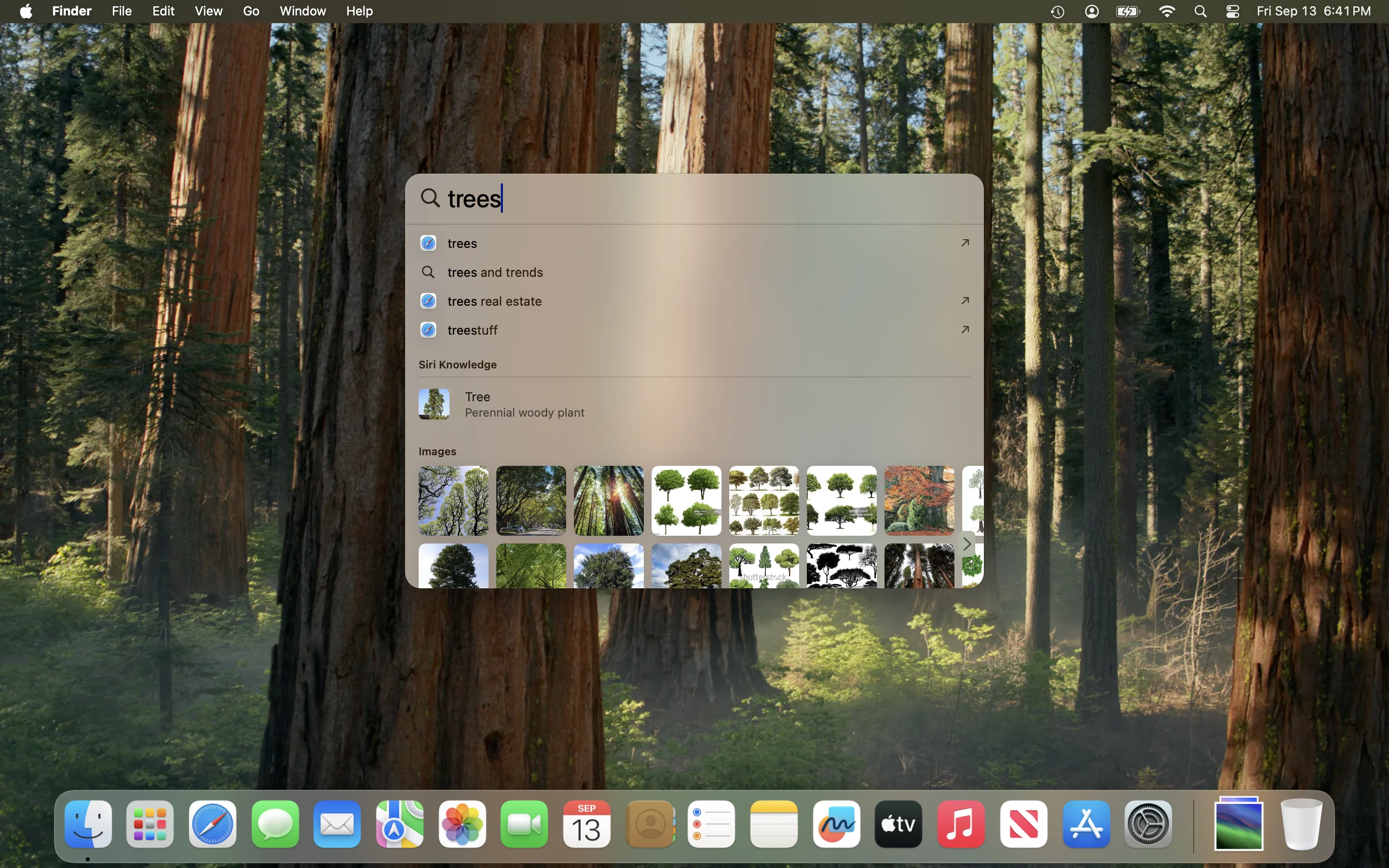
Fix missing Spotlight results on Mac with a focused checklist: check filters, privacy and cloud files, rebuild the affected folder, then verify recovery.
If Spotlight cannot find a file you can open in Finder, check search filters, result categories and excluded locations before rebuilding anything. When those checks are clear, rebuild the affected folder first using Search Privacy in System Settings. Do not start by deleting hidden index folders or disabling system services.
This guide focuses on macOS Tahoe and the practical distinction between missing results and a busy Mac. The settings may be labeled Spotlight or Siri & Spotlight, and Search Privacy or Spotlight Privacy, depending on your macOS version. It is a documentation-based troubleshooting workflow, not a claim that we reproduced your issue on a particular Mac.
Key Takeaways
- Establish that the file exists and opens before treating this as a search problem.
- A filtered search, an excluded folder and an unavailable cloud file need different fixes.
- Use one small, repeatable test and change one thing at a time.
- Reindex the affected folder before considering the entire disk; do not repeatedly restart the rebuild.
- High CPU alone does not prove corruption, a security problem or impending SSD failure.
- Judge recovery by useful search results and normal operation, not an invented universal completion time.
Start With a Test You Can Repeat
Pick one missing item that matters to you. Navigate to it manually in Finder, open it, and write down its exact filename and containing folder. Avoid starting with an obscure word inside a scanned PDF: that mixes file discovery with text recognition and document-format support.
Next, choose an ordinary document in a different folder that search already finds. This is your control item. Record whether each item appears when you search by filename, then whether the result opens the correct document. You now have something more useful than “Spotlight seems broken.”
For example, your notes might say: “An existing PDF opens from the Projects folder but does not appear by its filename; a text document in another local folder does appear.” That pattern supports investigating the affected location before making a disk-wide change. If neither document opens normally, search repair is the wrong first priority.
Keep the original files where they are while testing. Moving a whole project, renaming hundreds of items or repeatedly copying a cloud library changes several variables and can create extra work. If you need a test document, use a small, non-sensitive file in a folder you own and can identify clearly.
Choose the Right Troubleshooting Branch
The table below is a diagnostic framework, not a list of confirmed Tahoe bugs. Its purpose is to separate failures that look similar in the search window.
| What you observe | Check first | Useful next step | Avoid for now |
|---|---|---|---|
| Apps appear, but documents do not | Active search mode and document result categories | Repeat an unfiltered filename search | Rebuilding every disk |
| One folder is missing from results | Privacy exclusions and access to that folder | Correct an accidental exclusion, then retest | Changing permissions across your home folder |
| A cloud item appears in Finder but will not open | Download or sync status | Download one item and verify it opens | Signing out of your Apple Account |
| An external drive disappears from Finder | Connection, power and volume availability | Restore stable access first | Rebuilding an intermittently connected disk |
| Filename search works but a word inside one document does not | File format and whether its text is actually selectable | Compare with a simple text document | Assuming every PDF contains searchable text |
| Search works, but the Mac is busy | Process activity and the timing of recent changes | Observe the trend while testing a known file | Treating one CPU screenshot as proof of damage |
| Many local files remain absent after basic checks | Scope of failure across folders and accounts | One targeted rebuild, followed by verification | Deleting hidden metadata directories |
This approach also keeps app-specific issues separate. If only messages in Mail are missing, compare Mail's own search with ordinary document searches before rebuilding the entire startup disk. Our Mail search troubleshooting guide covers that narrower symptom; do not assume an app's private database and Spotlight's file search are interchangeable.
Check Search Scope and Result Categories
Start a fresh search rather than continuing inside an old filter. Tahoe's Spotlight supports separate browse modes for applications, files, actions and clipboard history. An app-only view is not a meaningful test of whether a PDF is indexed. Apple documents these distinctions in its Spotlight search-filter guide.
Open System Settings and select Spotlight. Review the enabled categories for results from apps and the system. If the missing item belongs to a disabled category, enable the relevant category and repeat the same filename search. Apple's Spotlight settings reference distinguishes these controls from search history, clipboard settings and other preferences.
Do not reset unrelated preferences just because they share the Spotlight settings screen. Deleting search history, for example, is not the same task as rebuilding a folder's file index. Keep a record of any category you change so you can restore your preferred result mix afterward.
Finder offers another useful view, but it also has search criteria. Check which location and criteria are selected before comparing its results with Spotlight. A narrowly filtered Finder search and an unrestricted Spotlight search are different tests. Apple's Finder search guide explains how additional criteria constrain results.
If the application itself is absent, first confirm you can open it directly from its installed location. Search cannot repair an app that was removed or an installation that did not finish. For everyday navigation and actions after search is working, see our Spotlight feature guide.
Separate Privacy Exclusions From Missing Files
Search exclusions deserve an inspection before any rebuild. In Spotlight settings, open Search Privacy or Spotlight Privacy and look for the affected folder, its parent folder or the disk containing it. An exclusion higher in the folder hierarchy can explain why a smaller folder is missing.
If you discover an accidental exclusion, remove that entry and retest after giving search time to update. If it was intentional, decide whether you actually want those files discoverable before changing it. On a shared or managed Mac, ask the owner or administrator rather than undoing a privacy decision you do not understand.
Write down the original exclusion list before editing it. A screenshot can help, but keep it private if folder names reveal client, employer or personal information. Never remove every exclusion as a generic “reset.” That makes it difficult to tell which change mattered and may expose items in results that you deliberately kept out.
A file that is absent from Finder, locked on an unavailable volume or inaccessible to your account needs a different investigation. Do not apply recursive ownership changes to your startup disk to make a search test pass. Search should not become a reason to loosen access controls for unrelated files.
Check Cloud Availability Without Disrupting Sync
A visible filename does not always mean the file's contents are downloaded. In iCloud Drive, control-click the affected item and choose Download Now when it is available. Wait for that individual download and verify the document opens. If you need it kept locally, Keep Downloaded is the separate option Apple documents in its iCloud Drive file guide.
Treat this as an isolation test, not a promise that every cloud-only document is invisible to Spotlight. Filename discovery, local file availability and searching inside the document are separate observations. Record which one fails rather than using “not indexed” to describe all three.
For another cloud provider, use that provider's own availability indicator and documented download control. Do not assume its menu names or indexing behavior match iCloud. If downloading fails, resolve the connection, account or provider issue before rebuilding a local folder.
Avoid disabling cloud sync, moving the entire library out of its synced location or signing out as an early search fix. Those actions affect much more than the one missing result. Our iCloud Drive guide provides additional context, but a single-file test is the better starting point here.
Rebuild Only the Affected Folder First
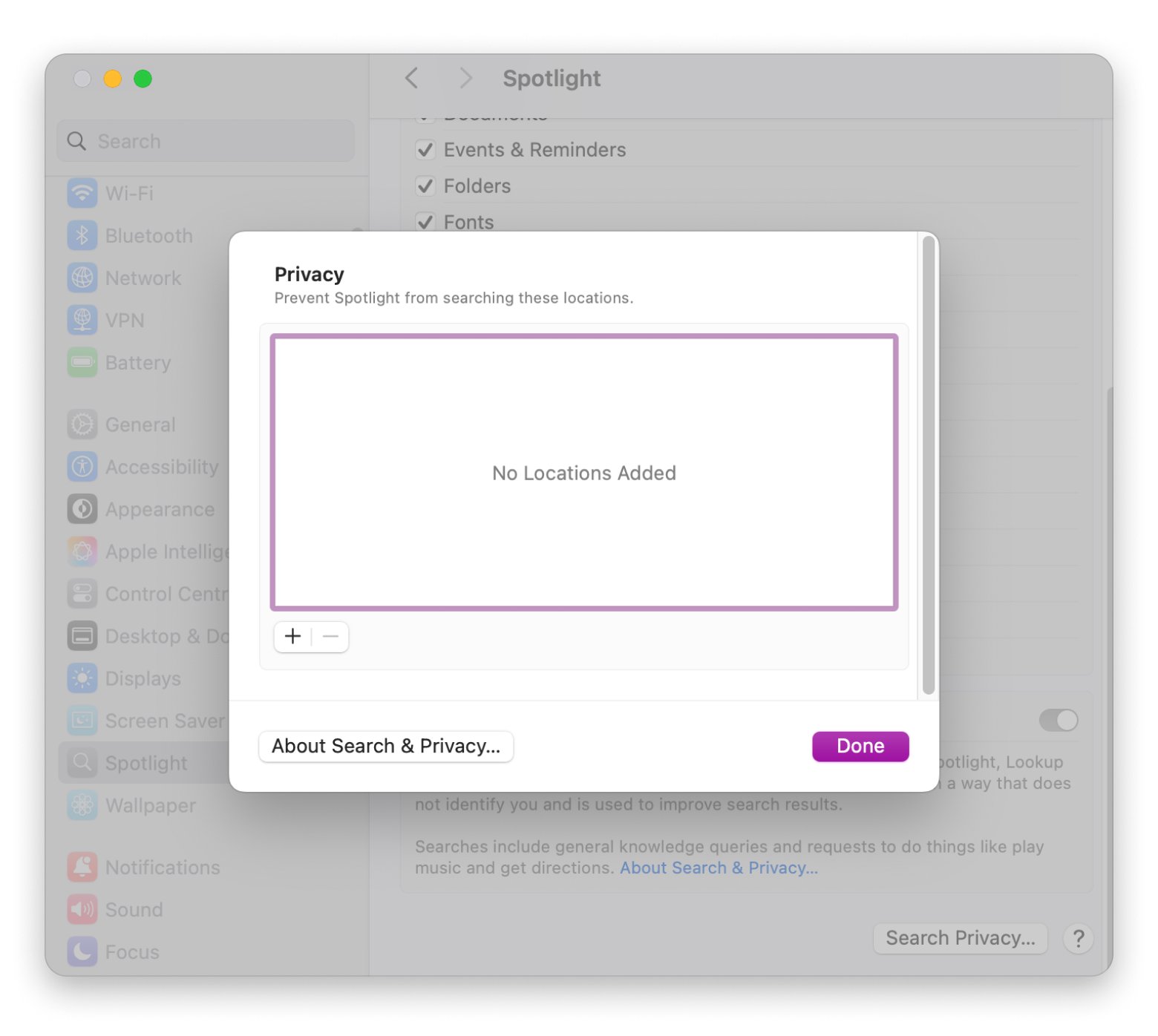
Apple's supported rebuild method uses the privacy list: add the affected folder or disk, wait a few seconds, then remove that same entry. The official indexing article also explains that an unknown or permissions error can indicate ownership problems.
- Open System Settings, then Spotlight or Siri & Spotlight.
- Open Search Privacy or Spotlight Privacy near the bottom.
- Add the folder you want to reindex, using the add button or dragging it into the list.
- Wait a few seconds.
- Select only the entry you just added and remove it with the minus button.
- Click Done and quit System Settings.
Choose the smallest location that contains a representative failing example. If several unrelated folders on the same disk fail, a disk-level rebuild may become reasonable after the earlier checks. It should be a deliberate expansion of scope, not the automatic first action.
If a folder is already excluded intentionally, reconsider whether rebuilding it is appropriate. Leaving it excluded and expecting it to appear in ordinary search is a conflicting goal. Do not remove unrelated entries during this procedure.
Afterward, leave the test location in place. Do not repeatedly add and remove it, run cleanup utilities or switch between competing reset recipes. A rebuild is meant to establish a fresh index; restarting the process makes it harder to judge the result.
Verify Progress Without Inventing a Deadline
Use your original missing item and control item for the follow-up check. Try the same filename search, open the result, and confirm that it points to the expected file. If that succeeds, expand the test to another item from the same folder before declaring the problem resolved.
A practical acceptance checklist is:
- The originally missing local file appears by its filename.
- Opening the result reaches the expected document, not an obsolete copy.
- The control file still appears.
- Another file in the affected location behaves normally.
- After an ordinary restart, the same searches still work.
This checklist is our suggested verification method, not an Apple guarantee about every file type. A complex library can have more than one problem, so a recovered PDF does not establish that an unrelated app's content search is also fixed.
Do not use a storage-capacity table to predict an exact finish time. Capacity alone does not describe the number or type of items, storage performance, downloads or other work happening on the Mac. Equally, do not decide that a rebuild has failed simply because an arbitrary number of minutes elapsed.
If search remains unchanged, record what has actually happened: the folder you rebuilt, when you started, whether the missing files open, and whether results improved at all. Those observations are more useful for escalation than repeatedly saying the index is stuck.
High CPU: Measure the Symptom Before Resetting Search
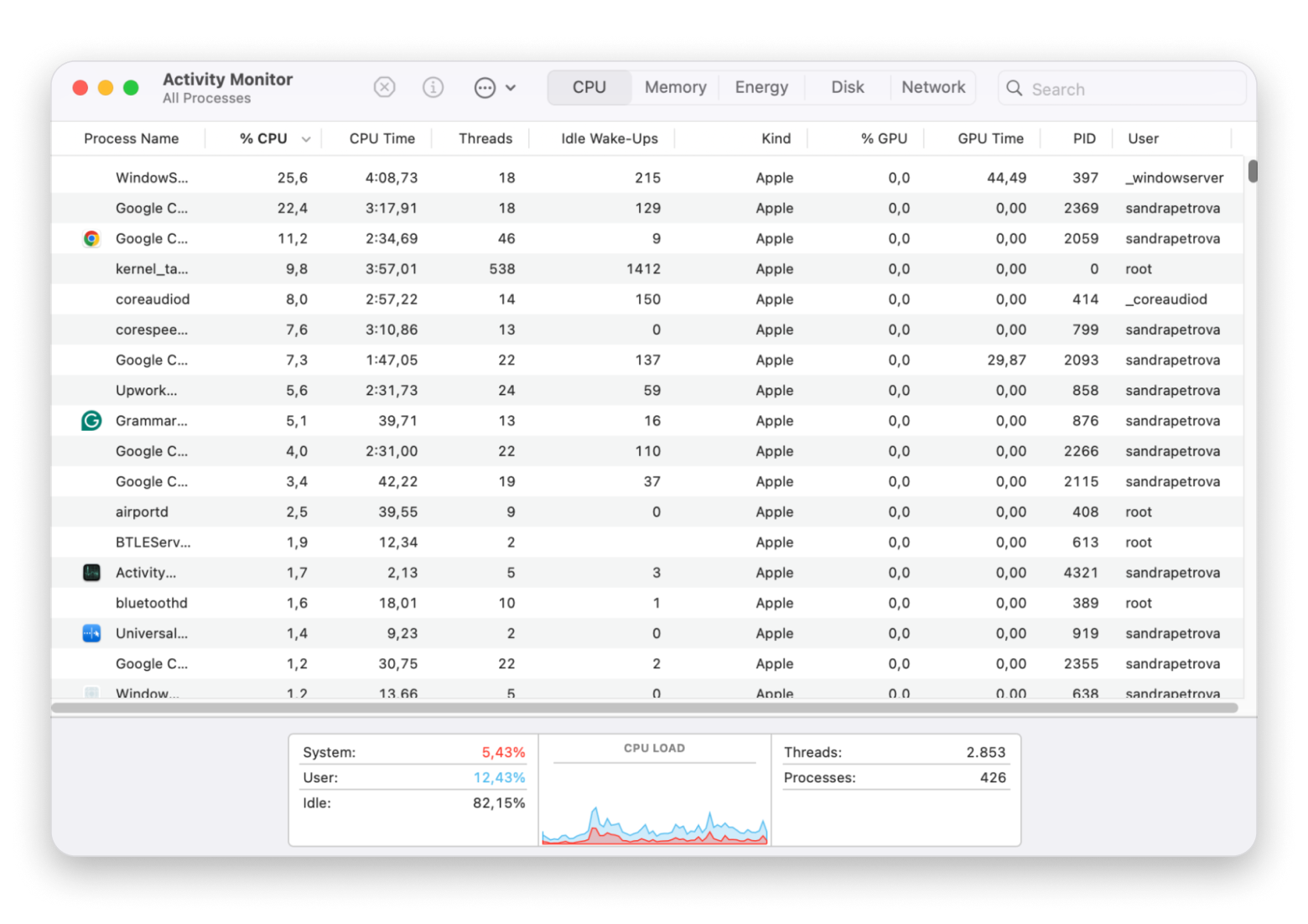
A busy Mac and missing search results may occur together, but that does not establish that the same repair is appropriate for both. If you notice a process named mds_stores, record it accurately rather than assuming every background process is Spotlight. Keep the diagnosis tied to what Activity Monitor actually shows.
In Activity Monitor, the CPU tab and CPU History view help you compare current activity with a recent trend. Apple's CPU activity reference describes these views. To inspect a particular process, sort the list or open its information window using Apple's process-information instructions.
For a useful comparison, note whether you just installed an update, restored files, connected a large archive or initiated a rebuild. Then repeat the same file-search test while observing whether activity changes. Keep intensive foreground tasks out of the comparison where practical, and save your work before restarting.
Do not translate a single high CPU percentage into an SSD-wear estimate. CPU use is not a measurement of physical drive wear. Nor does a screenshot establish a confirmed version-specific bug. If the Mac is persistently difficult to use, record the process name, the duration you observed and what changed immediately beforehand.
A falling CPU reading is not sufficient proof that search is fixed; a successful search is not proof that every performance problem is gone. Track the two symptoms separately. Our Activity Monitor guide can help with a broader performance investigation.
Troubleshooting Common Issues
The privacy dialog reports an unknown or permissions error
Stop at the error rather than trying to force access. Confirm that the selected folder belongs to the account you are using and opens normally. On a work Mac, provide the administrator with the exact message and affected location. Do not change ownership of system folders or grant broad access to a third-party utility as a workaround.
The file is on an external disk
First establish that the volume stays mounted and the file opens repeatedly. A disappearing disk cannot provide a stable search test. Use a known-good connection and preserve important data before investigating storage errors. Our external-storage troubleshooting guide covers that separate branch. Rebuilding the internal disk will not repair an unstable external connection.
Search works in safe mode but not after a normal restart
Safe mode can help isolate software loaded during startup. On Apple silicon, shut down, hold the power button for startup options, select the startup disk, then hold Shift and choose Continue in Safe Mode. On Intel, hold Shift during startup. Restart normally to leave safe mode. Follow Apple's safe-mode instructions.
Retest after returning to normal mode before blaming a named app. Safe mode also performs other maintenance, and some features behave differently there. If the issue returns, investigate login software methodically instead of disabling every background item. See our login-items management guide for context; preserve security and management software unless your administrator directs otherwise.
Files fail to open or the disk reports errors
Prioritize the data rather than the search index. Apple recommends having a current backup before using First Aid. Its Disk Utility repair procedure explains checking volumes, containers and the device, and using Recovery for startup-disk repairs. Do not select Erase as part of an ordinary Spotlight fix. If the only copy of important data is on a failing disk, seek help before experimenting.
The same folder still fails after one rebuild
Do not escalate automatically to deleting metadata directories. Assemble a concise support record: macOS version, file type, local or cloud location, exact query, result-category settings, relevant exclusions, rebuild scope and outcome. Share a non-sensitive example when possible. A support technician can investigate the repeatable failure more effectively than a history of undocumented reset commands.
What Not to Do
Avoid blanket index deletion, recursive permission changes, unloading protected services and disabling system protections. This guide intentionally does not provide a “nuclear reset” command sequence. A search problem is not sufficient evidence that those actions are necessary.
Likewise, do not permanently turn off indexing across every volume merely to reduce activity. That can exchange a performance complaint for a search-functionality problem and obscures the original cause. Keep changes scoped, reversible and tied to a measurable result.
If you already ran an unfamiliar reset script, save its contents and note when you ran it. Do not attempt an improvised reverse script. Give the original commands to Apple Support or your administrator so they can assess what changed. Remove passwords and personal paths before posting that history publicly.
FAQ
Will rebuilding Spotlight delete my documents?
The documented privacy-list procedure requests reindexing; it is not a document-deletion workflow. The precautions here concern using the correct location and avoiding unrelated changes. If your files already fail to open or the disk reports errors, preserve your data and investigate storage health rather than treating a rebuild as data recovery.
How long should a rebuild take?
There is no universal deadline suitable for every Mac and library. Use a small set of known files to observe whether results recover, and avoid repeatedly restarting the process. If progress is unclear, record the scope and symptoms for support instead of following a timing table based only on disk capacity.
Do I need Terminal or an administrator password?
The ordinary workflow in this guide uses System Settings, not Terminal. If the privacy dialog reports an access or ownership problem, stop and investigate that specific issue. Do not assume that running a more powerful command is the right response, especially for a managed Mac or another user's files.
Why can Finder show a file that Spotlight cannot find?
Browsing directly to a folder establishes that an entry exists there; it does not establish that the current search scope includes it. Compare an exact filename search, relevant categories, privacy exclusions and file availability. For cloud items, also distinguish seeing a name from being able to open the downloaded contents.
Does high mds_stores CPU mean my SSD is being damaged?
A CPU reading alone cannot answer that. Record the process activity and the actual user-visible symptom, including whether searches are recovering. Avoid turning anecdotal disk-write reports into predictions for your machine. Persistent disk errors or unreadable files deserve a storage investigation, independently of what Spotlight is doing.
Should I rebuild the whole disk if one folder is missing?
Usually, start with the narrower diagnosis. Check exclusions, access and cloud availability, then rebuild the affected folder if appropriate. Broaden the scope only when your tests show a wider failure. This preserves a clearer record of what changed and avoids creating extra indexing work without evidence that it is needed.
Conclusion
The safest Spotlight repair starts with a specific missing file, not a reset command. Verify that it opens, remove unintended search restrictions, check cloud availability and use one focused rebuild when warranted. Then verify recovery using the same files. If the failure persists, keep your evidence and escalate without deleting system metadata or weakening security.
Related reading: Time Machine troubleshooting for preserving and verifying backups before broader repair work.